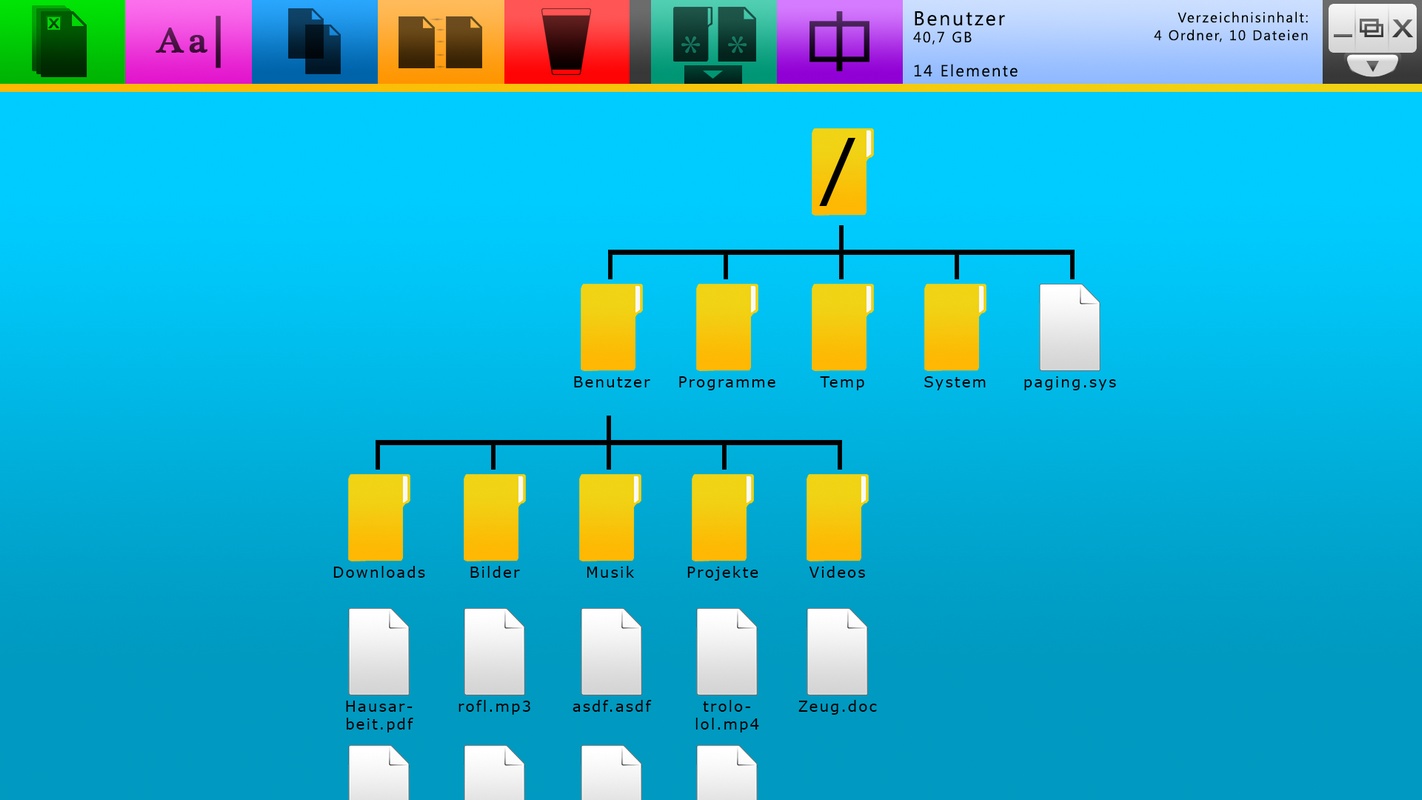
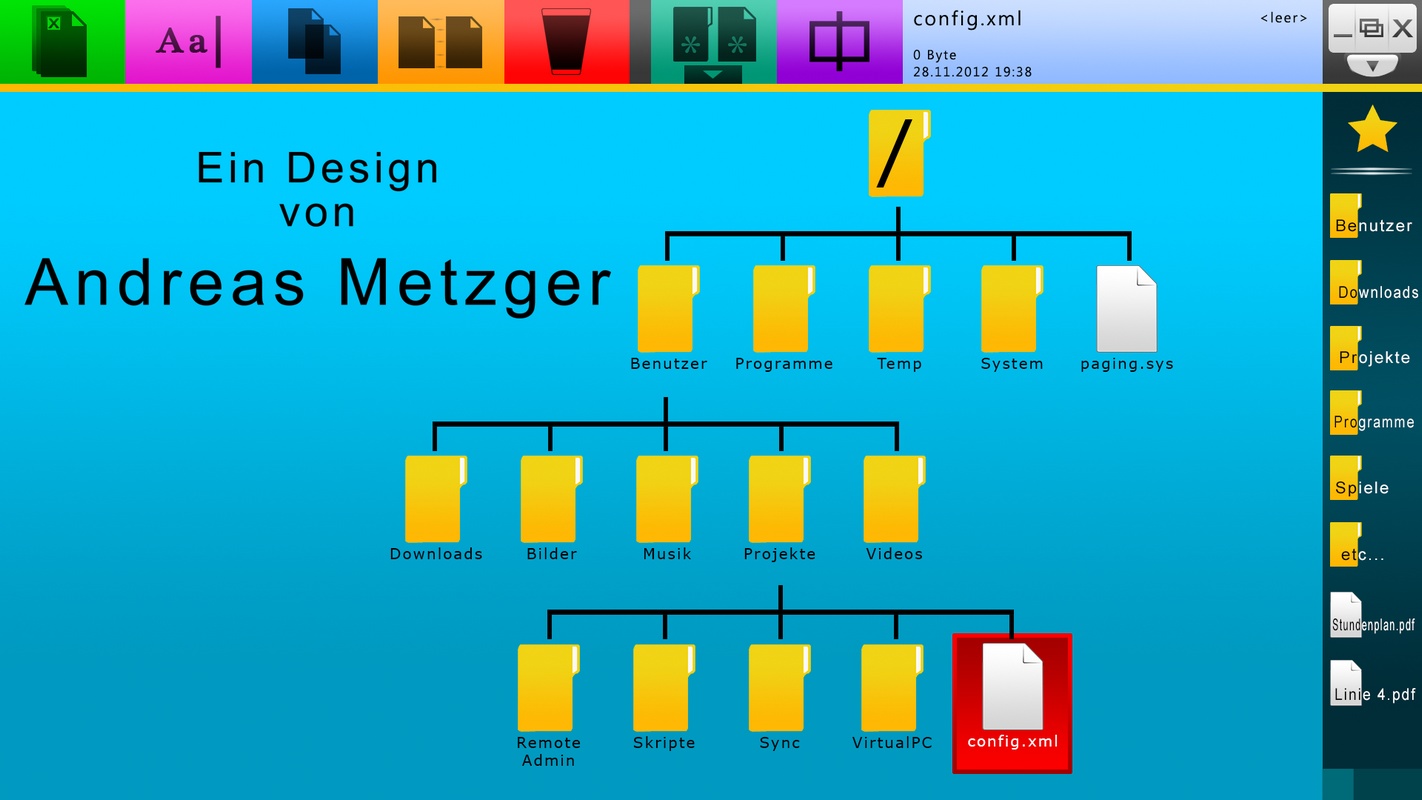
The standard layout. I decided to have the displayed hierarchy be a unix-like file system with a root directory.
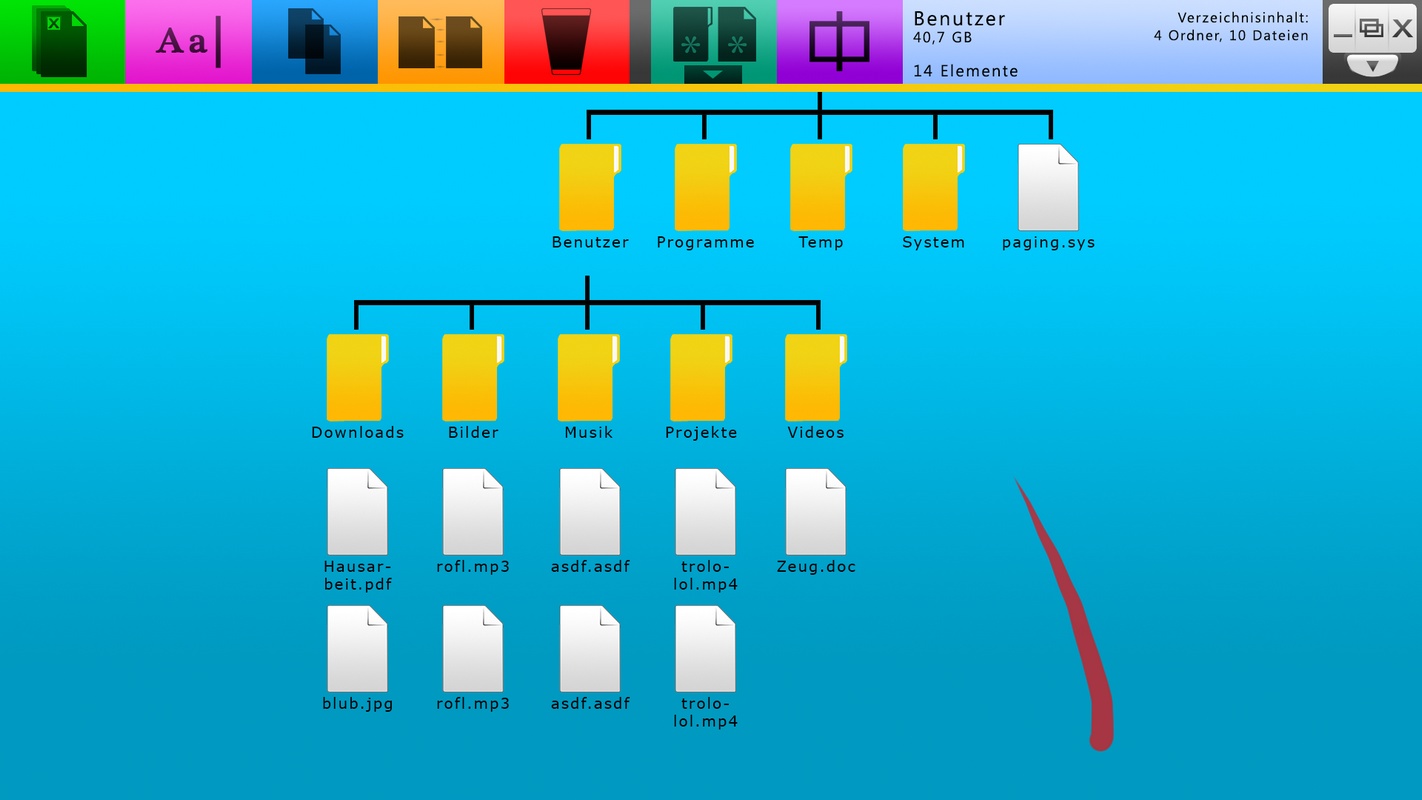
Red strokes visualize a touch gesture. In this case it is an upward flick.
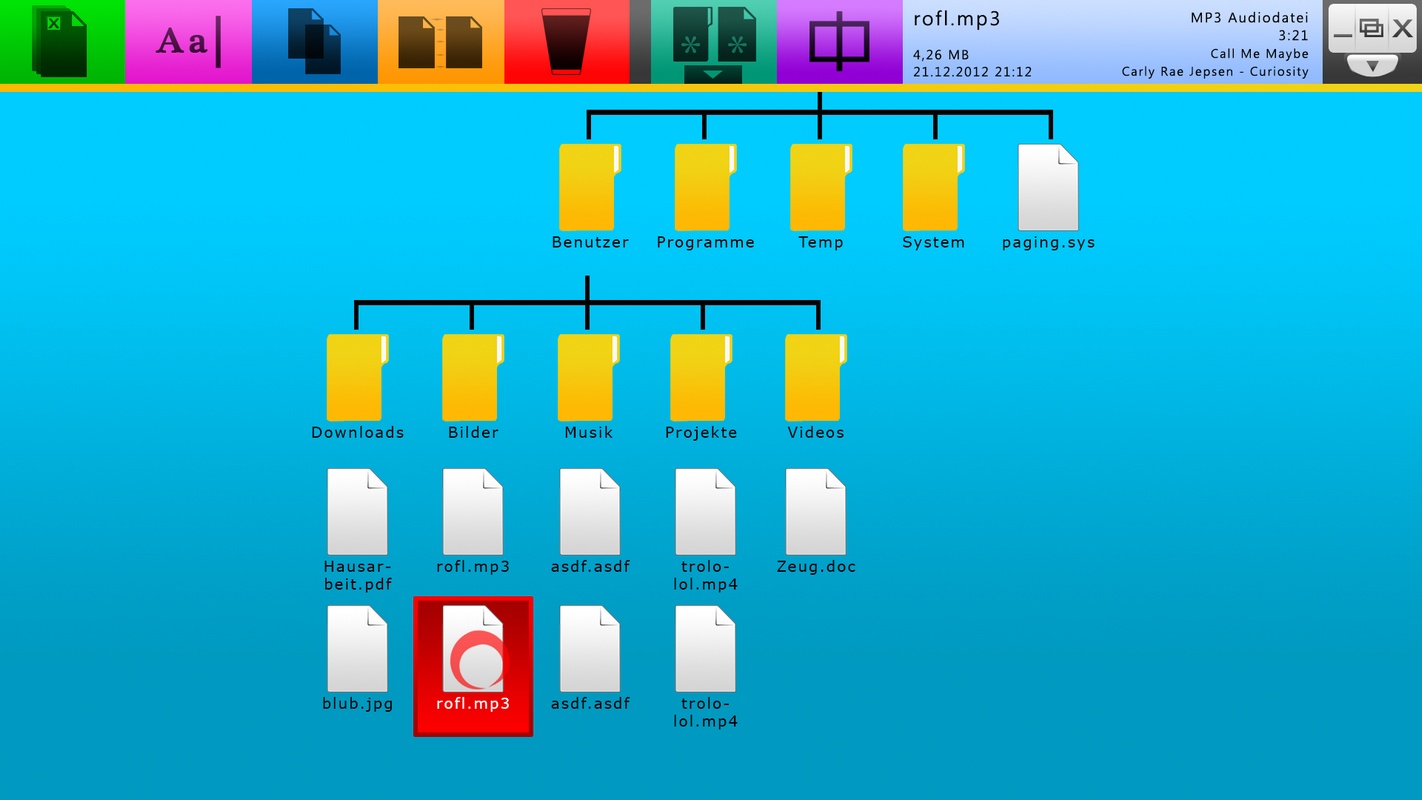
A circle indicates a single dip, equivalent to a mouse's left click. This way, files...
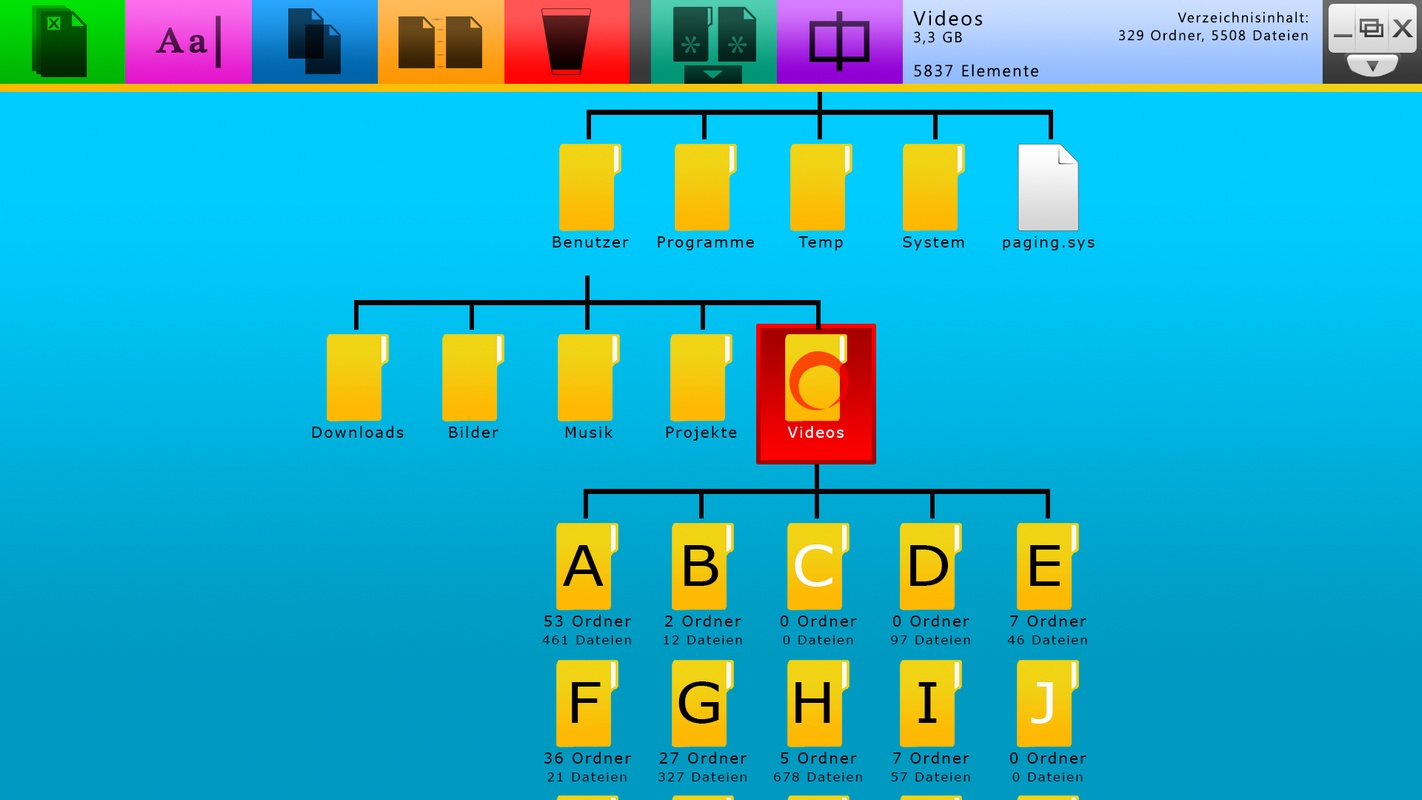
... and folders are being selected. Note the information pane on the upper right.
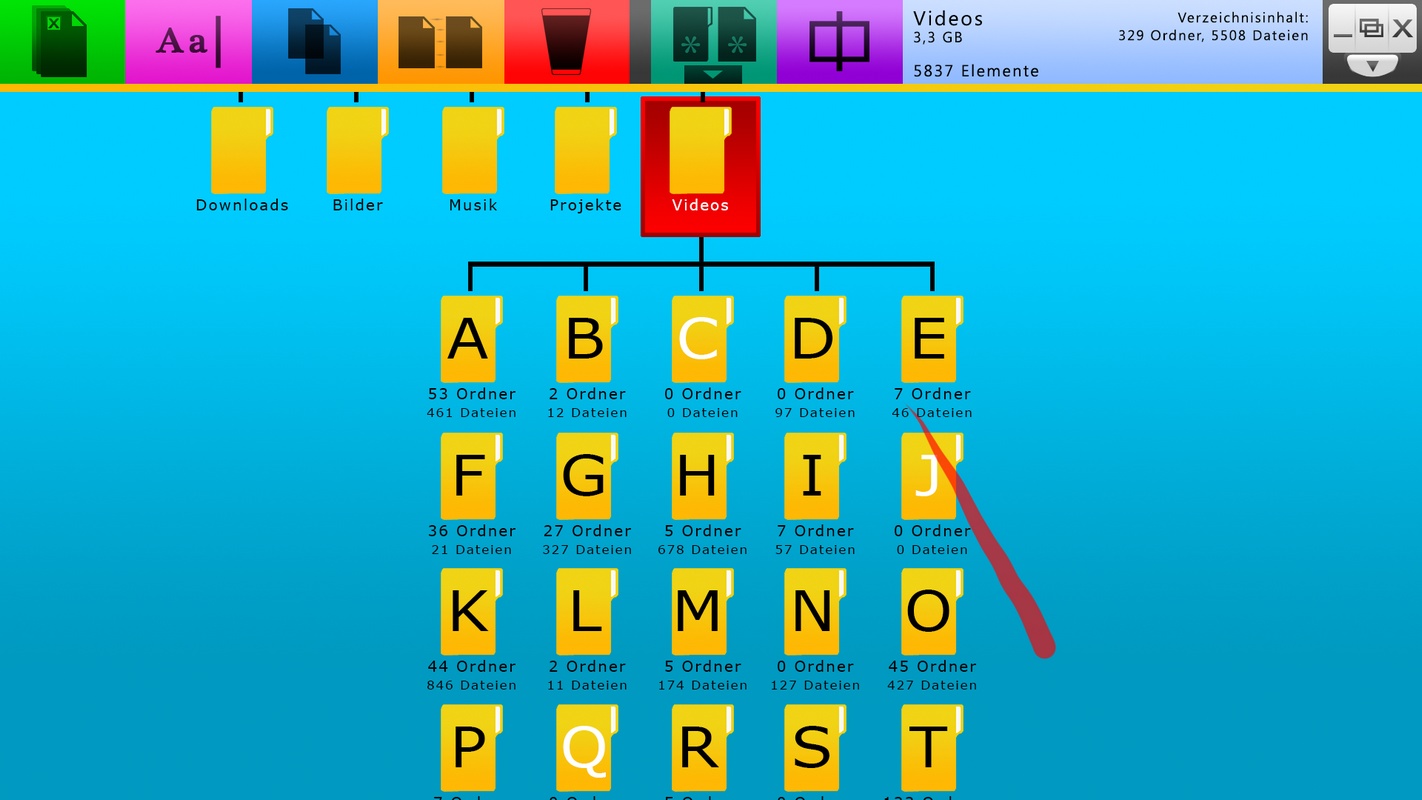
If a folder contains too much elements, files and folders will be grouped. Having 5837 elements to flick through would be really annoying.
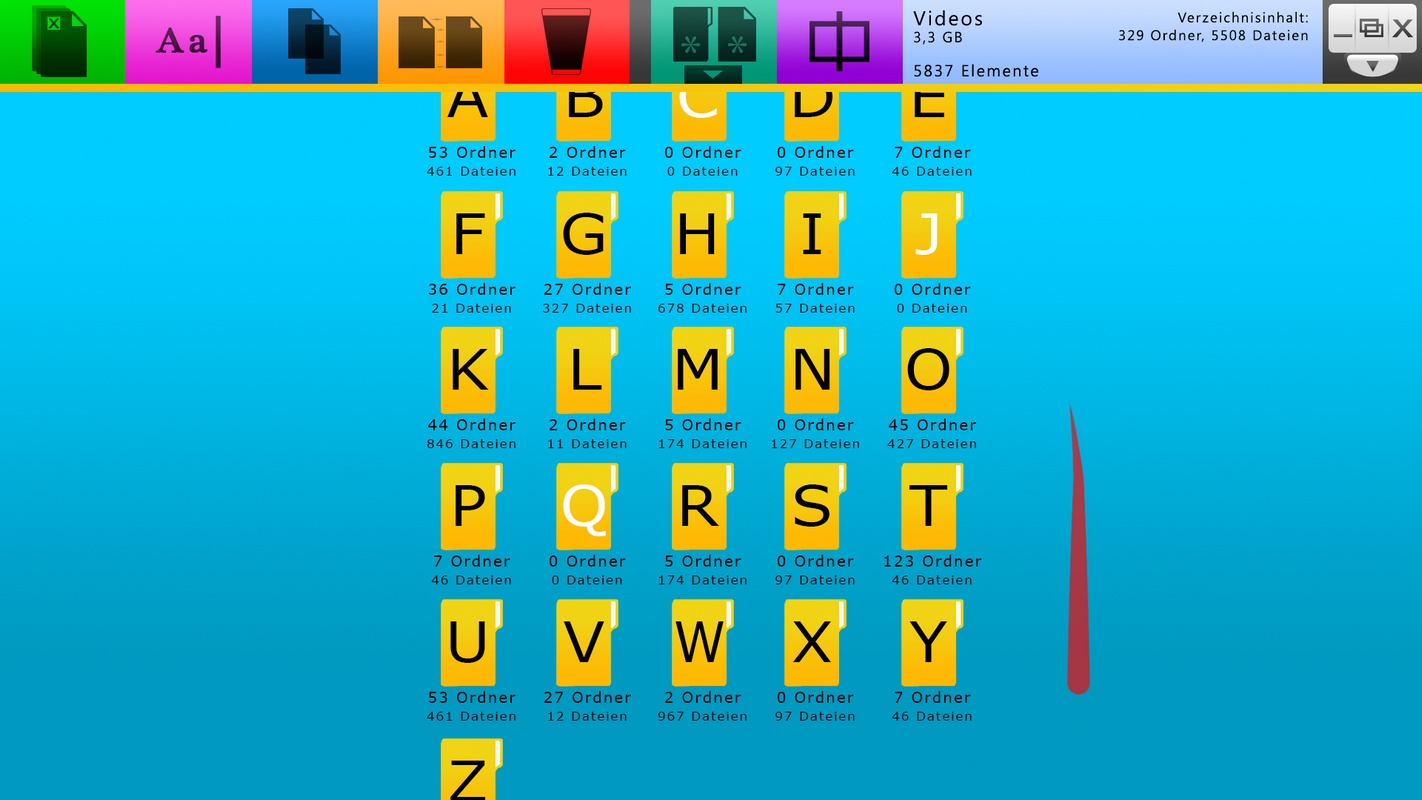
In this case, elements are sorted alphabetically.
Letters that do not contain elements are still displayed to keep conformity. Otherwise, all subsequent folders would shift to the left, changing the appearance for every folder to a different letter layout.
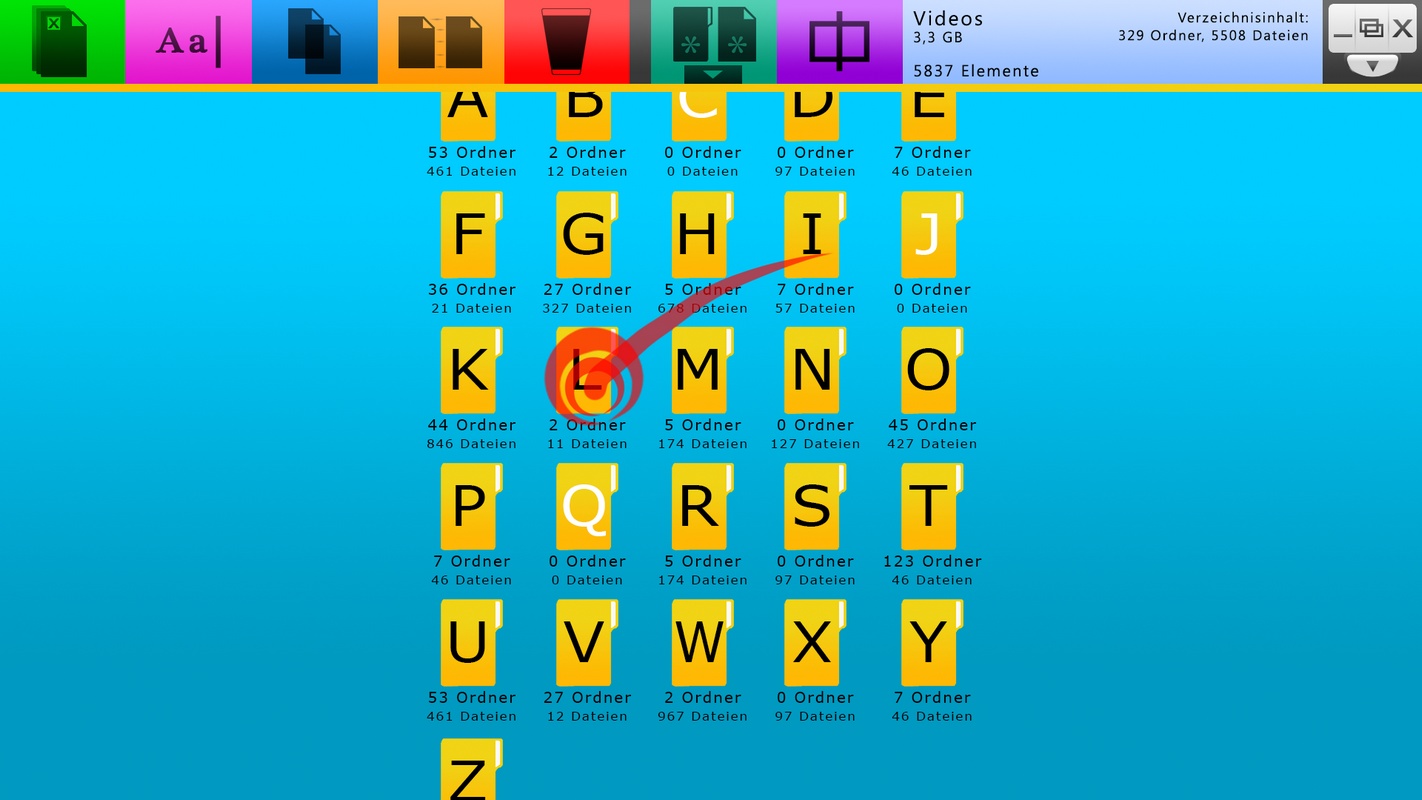
Intead of double clicking and dragging, holding the position until the second
stroke appears and flicking afterwards may be a more continuous and comfortable gesture.
Holding until a second stroke appears is regarded as the aquivalent to a mouse right click.
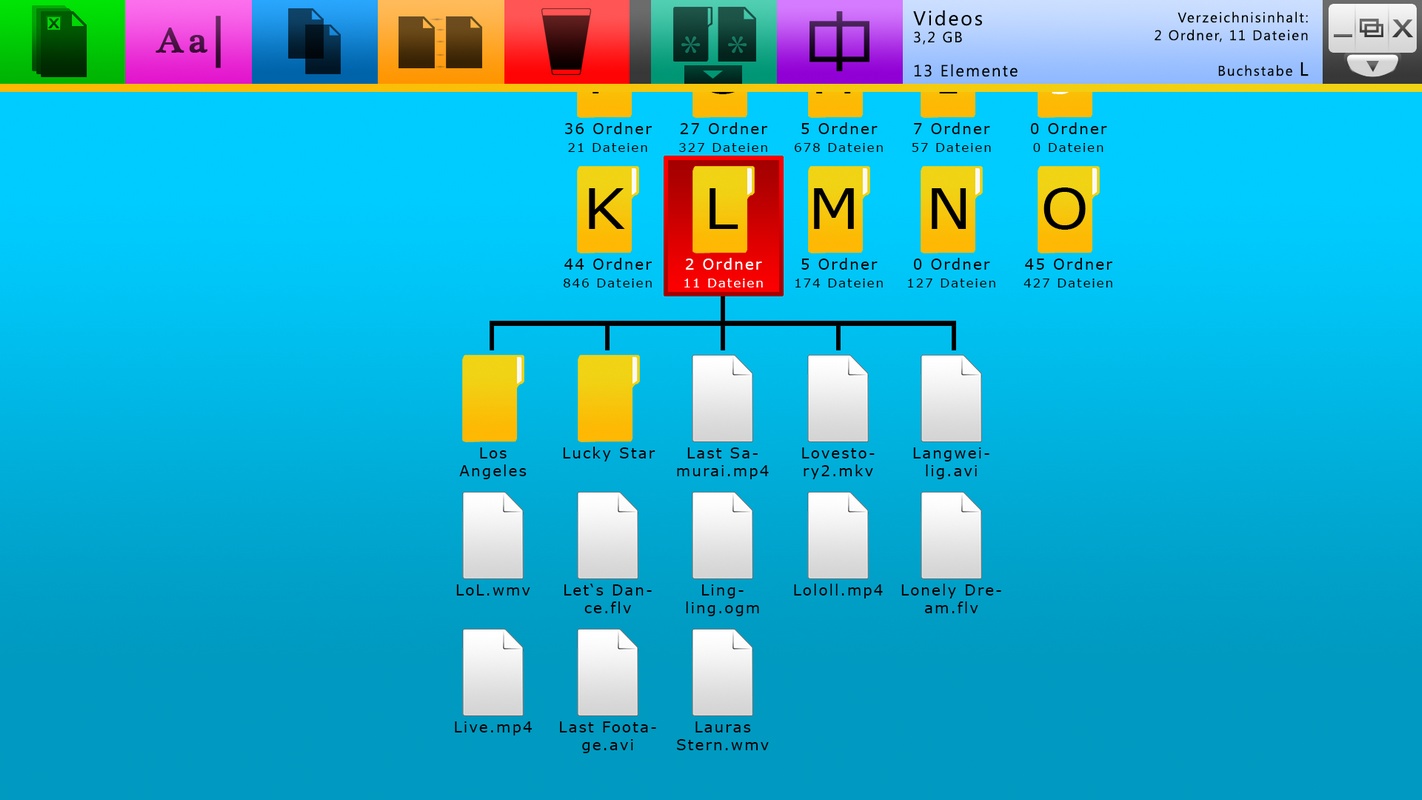
All files and folder beginning with the letter 'L' are displayed.
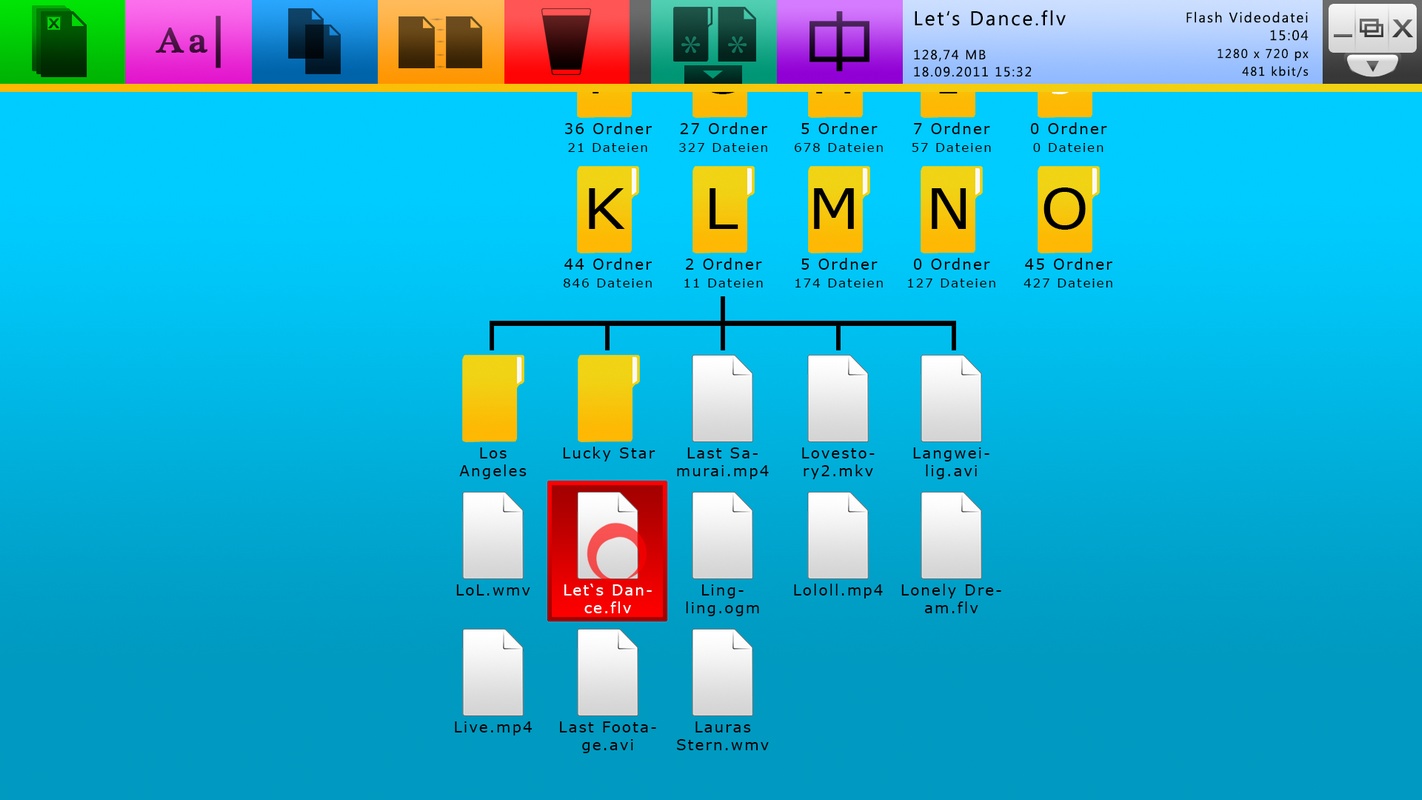
The right half of the information pane in the upper right is designed to react to different file types. In this case,
video specific information are shown.
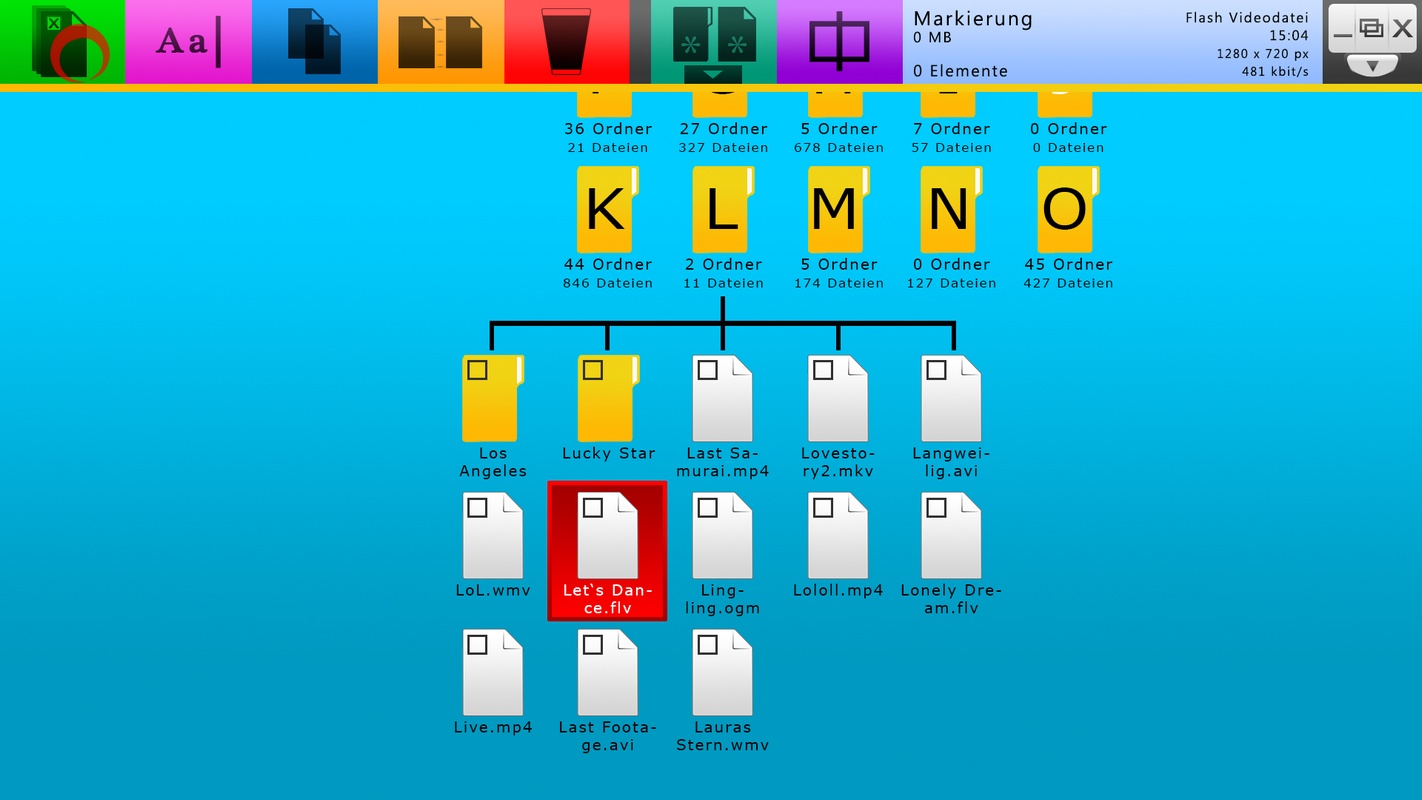
In order to select multiple files, the the green action field is selected.
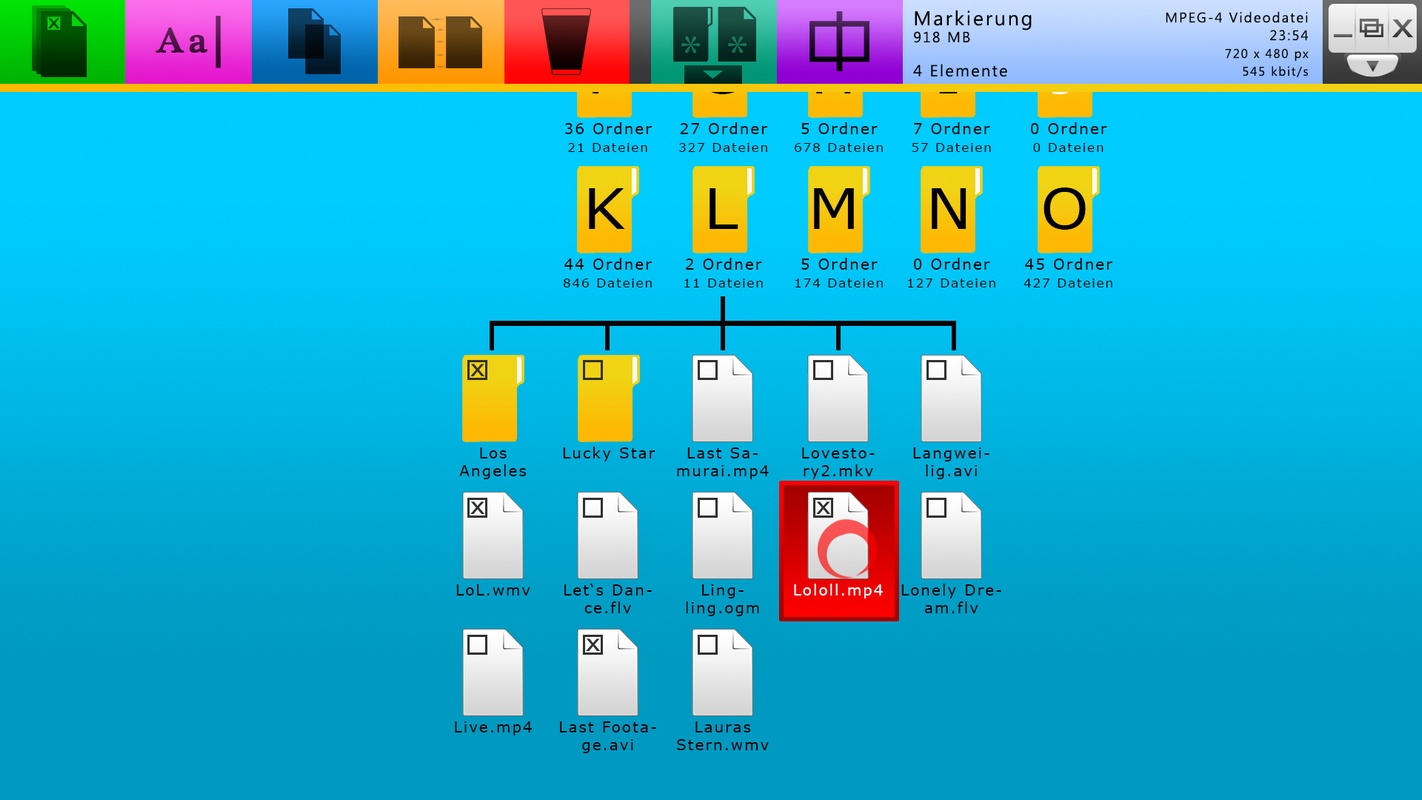
Every element has been provided with a checkbox. Elements to be selected are tipped. The information pane provides information about the overall set of elements.
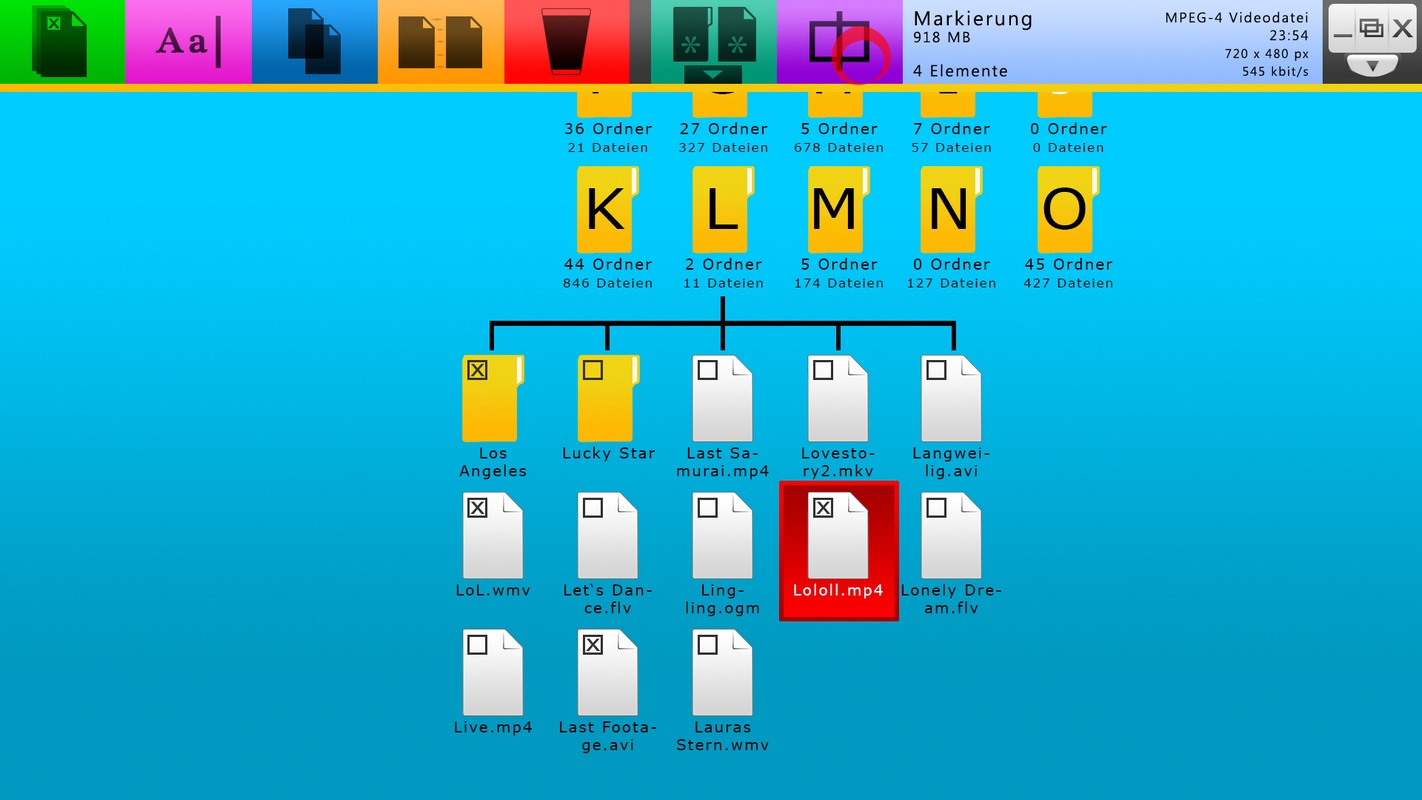
The purple action field will splitt the filesystem window to enable a dual view.
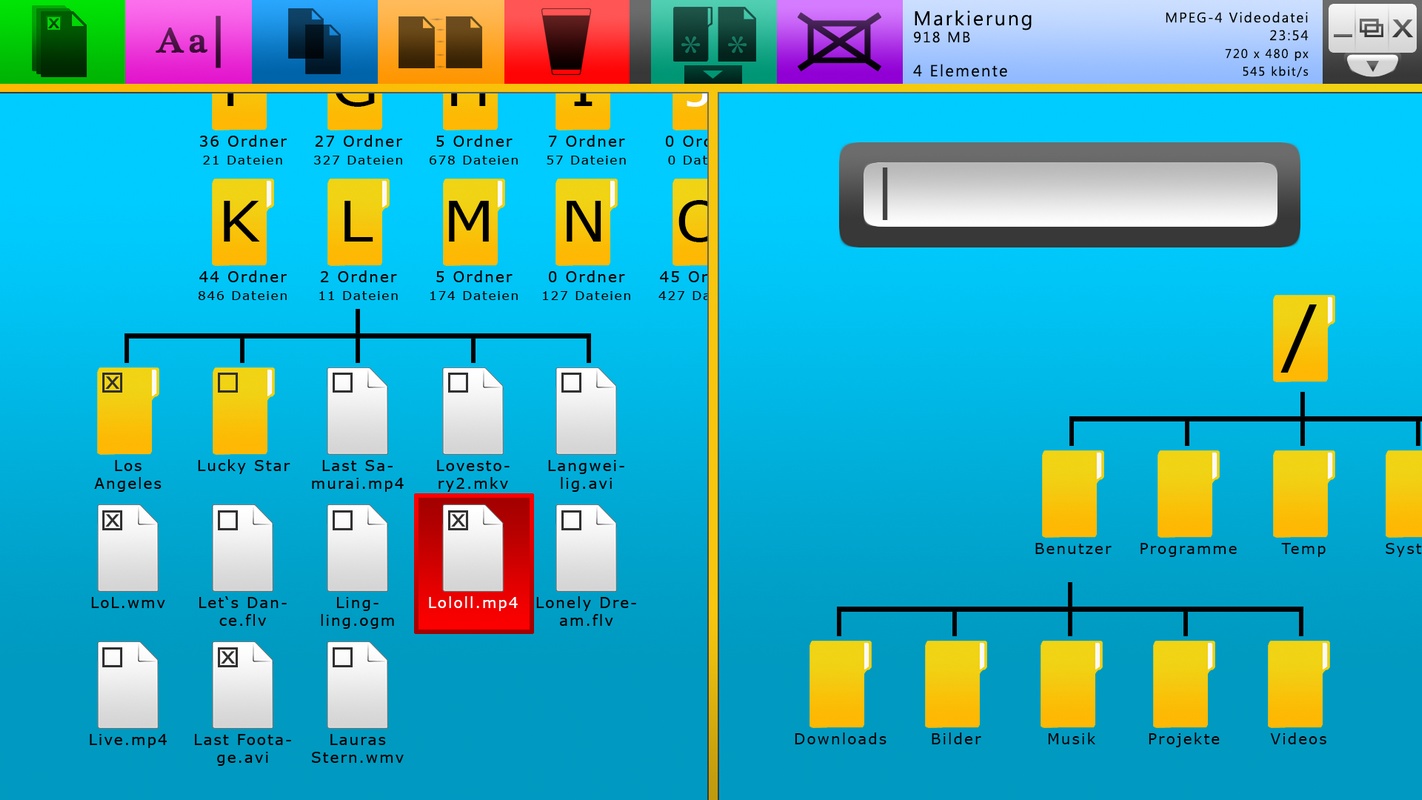
To be able to quickly jump to your destination folder a search bar is provided.
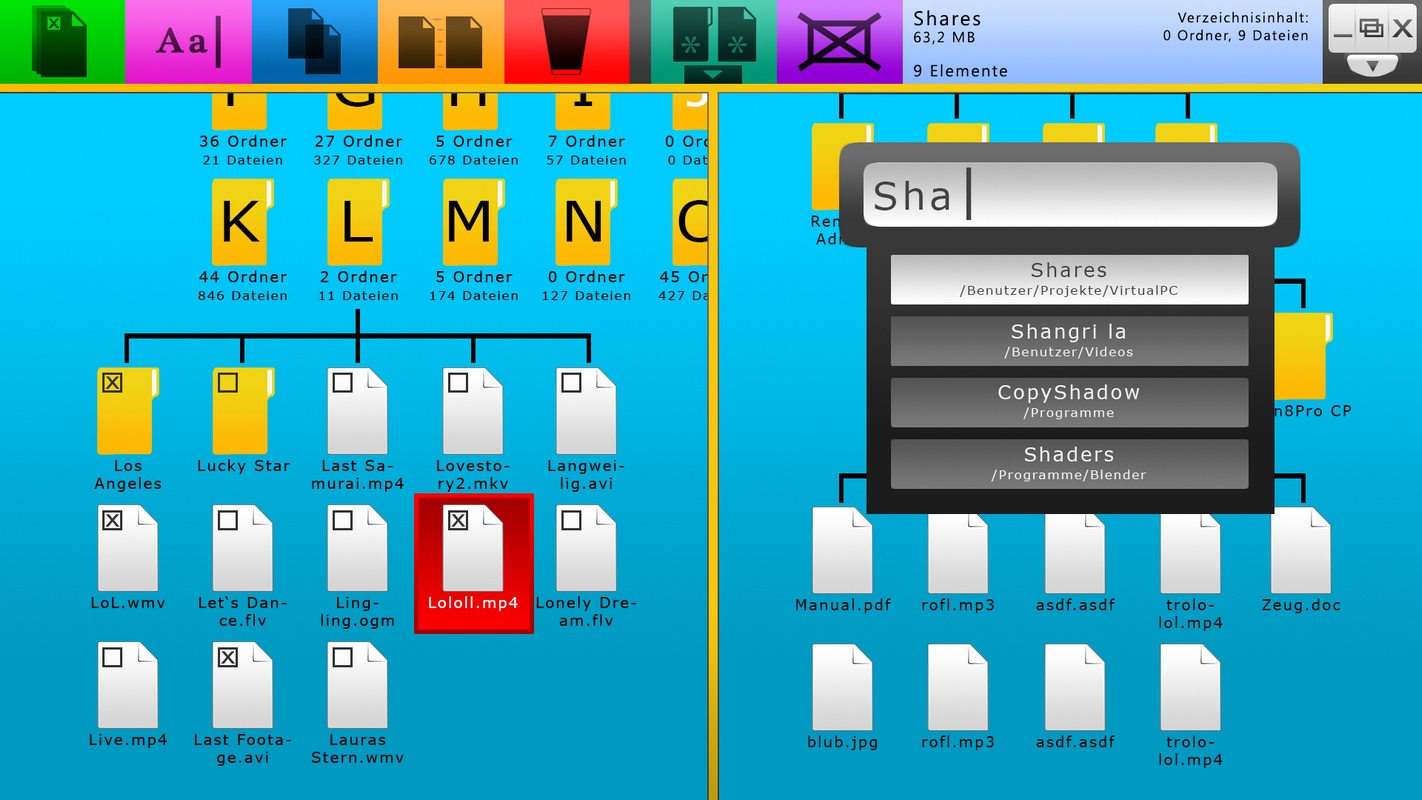
The search bar holds any file and folder in the filesystem
and is instantly able to make appropriate suggestions based on your input. Typing Enter on
your physical or virtual keyboard will call the first recommendation (in the white box).
Search results will adapt to your previous searches.
Note that the tree immediately jumps to the destination that is selected in the white box.
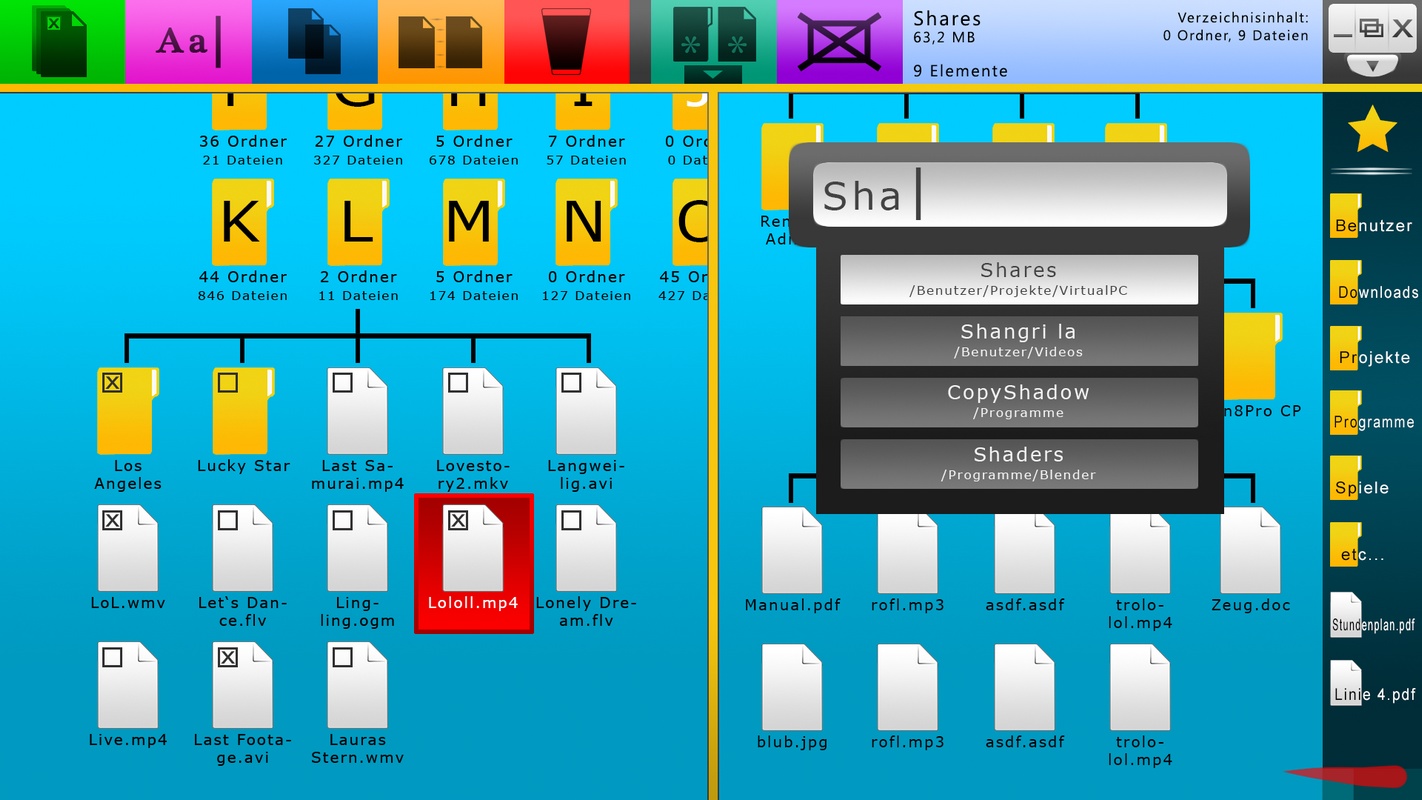
Alternatively you can flick out your favorites bar, which gives you access to your most used files or folders.
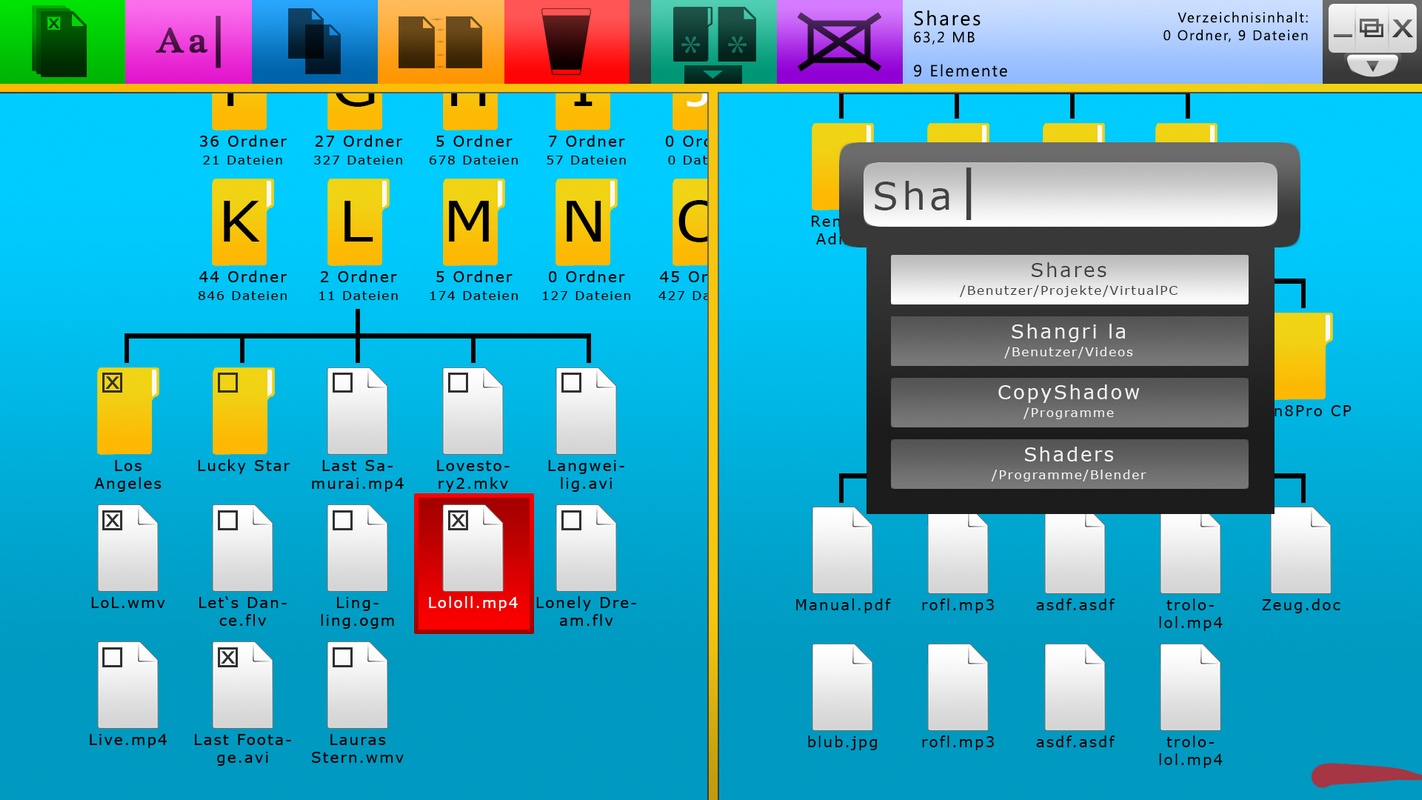
The favorites bar is by default invisible and may be called at any time. Further changes regarding its behavious can be made in the options menu
that can be dragged down via the small slider under the minimize-maximize-close button group.
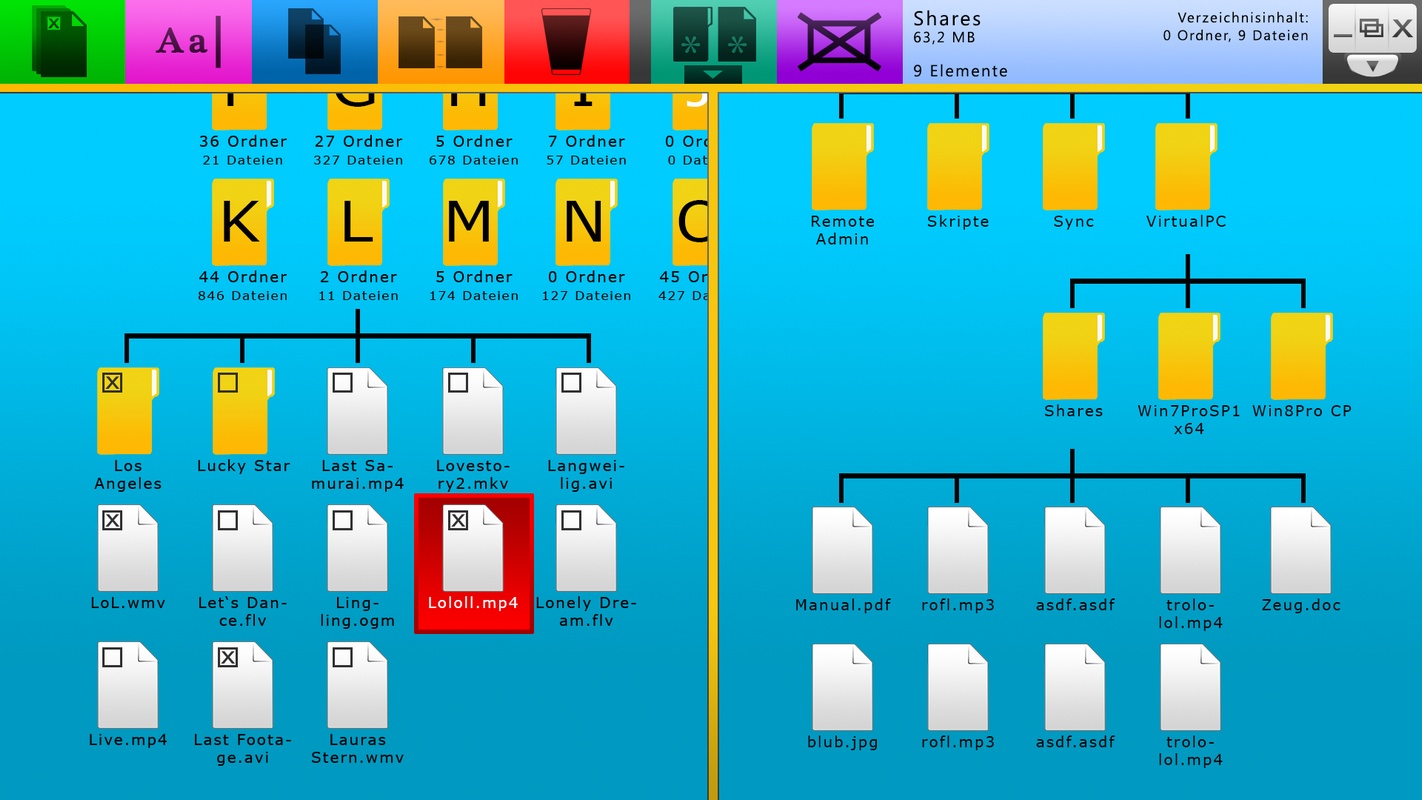
The information pane now shows information about the right window section since this is the one considered 'active'.
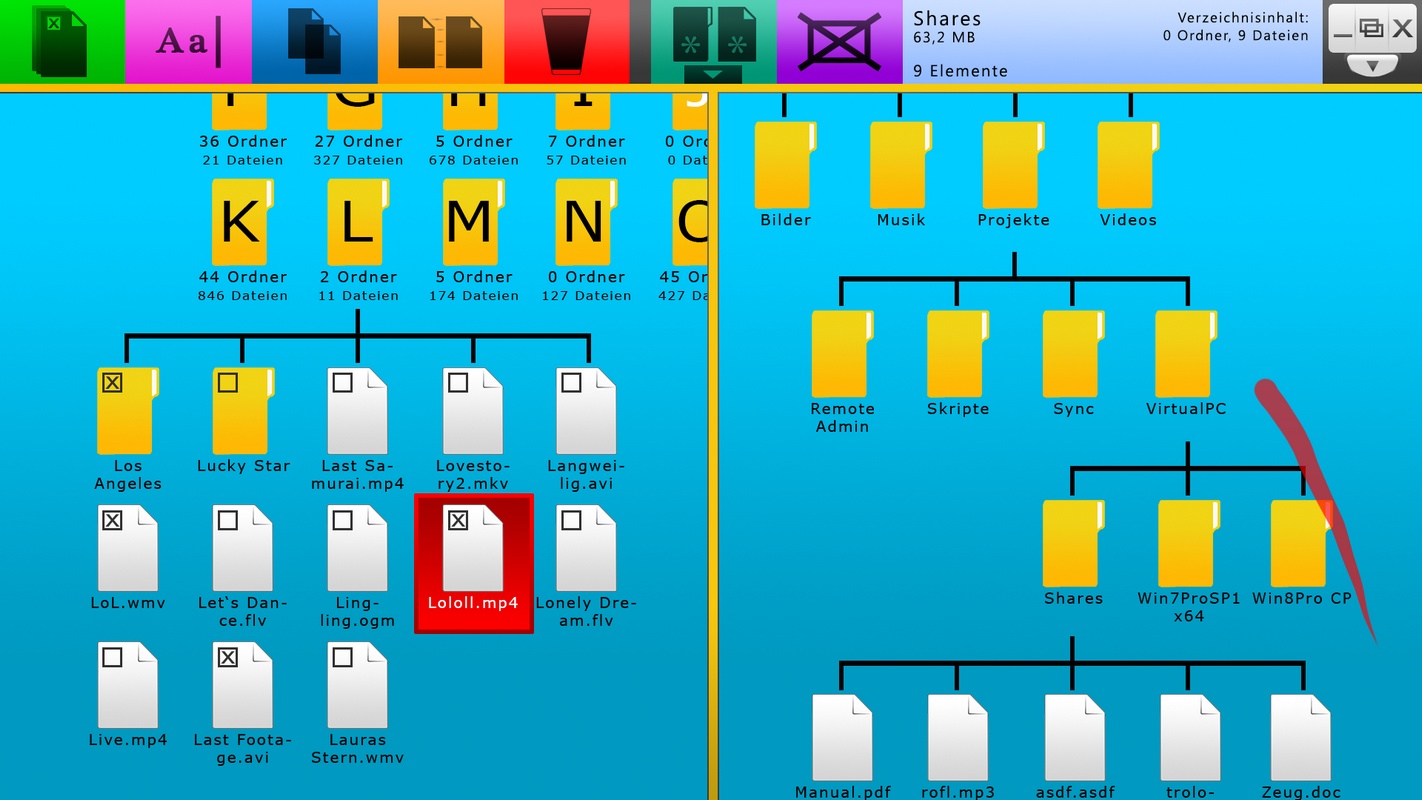
Both views can be browsed independently from one another.
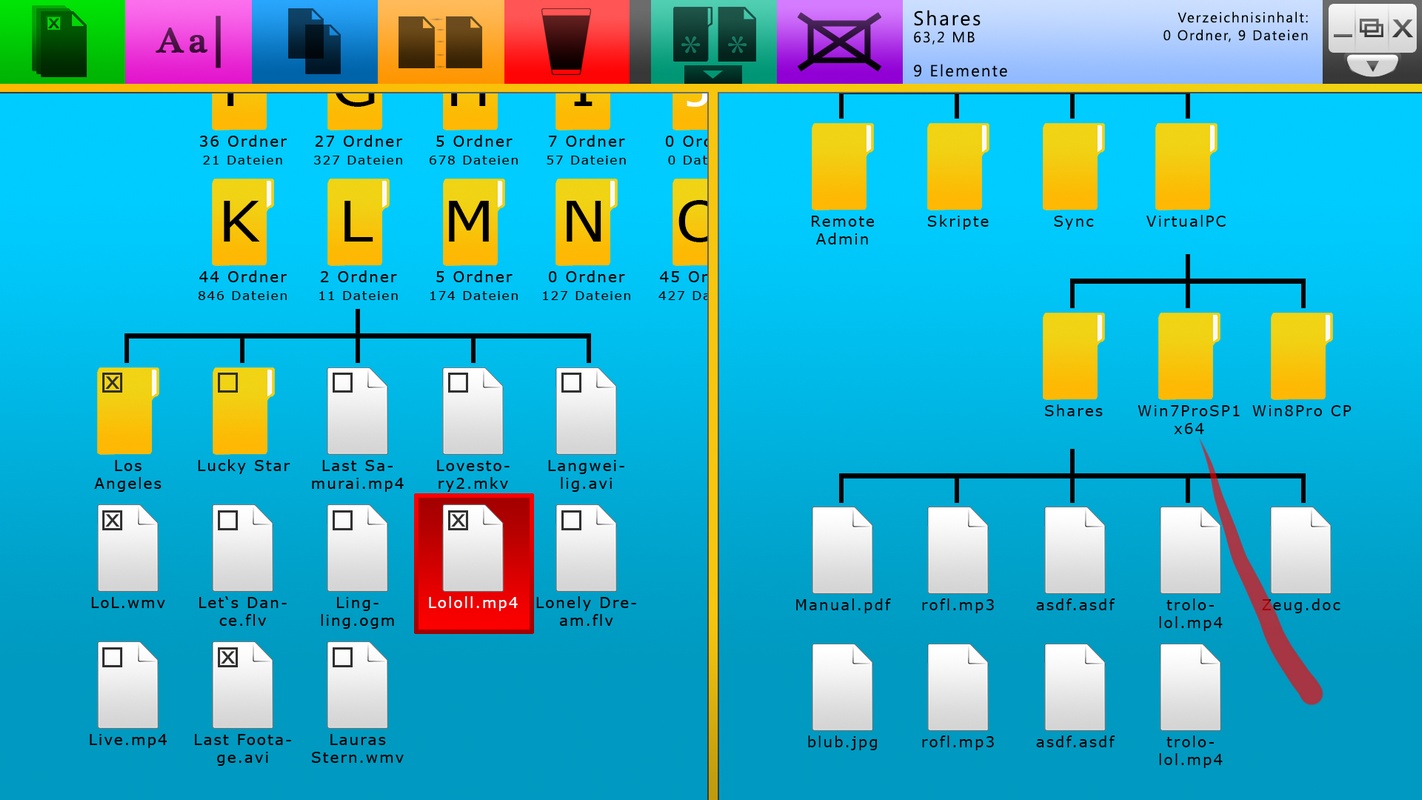
The maximum number of elements displayed next to each other is five by default. This may also be changed in the options.
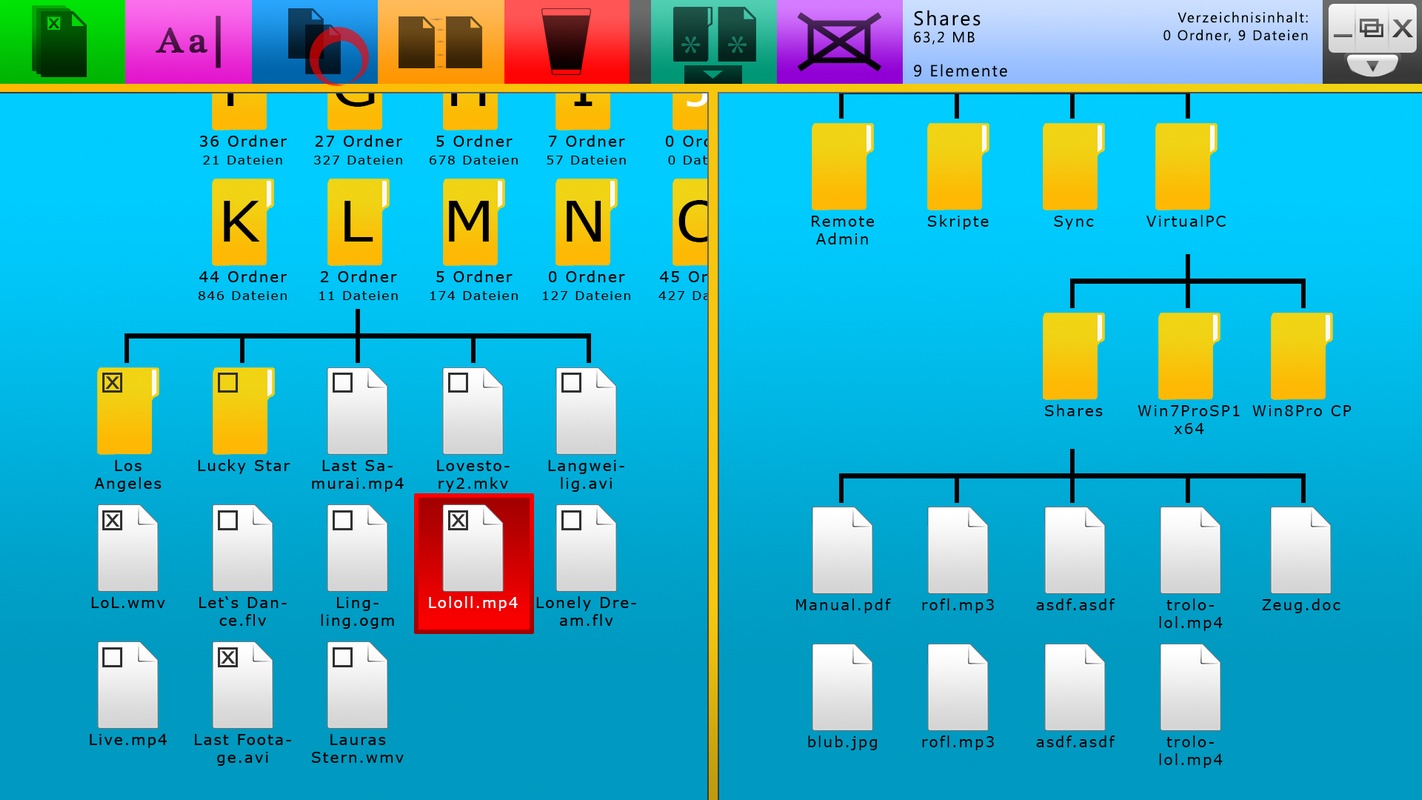
Pressing the blue action field will copy your selected files to the destination directory.
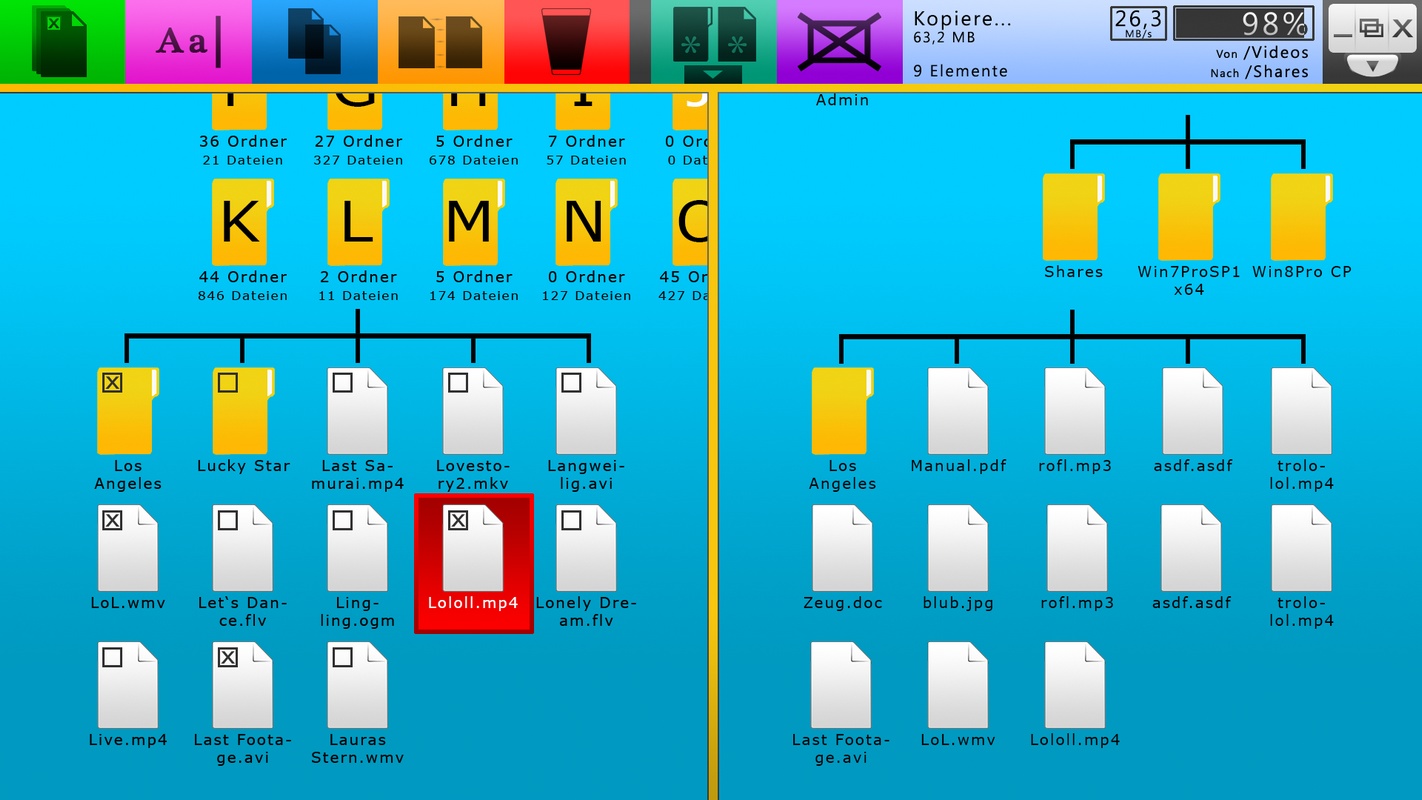
The information pane will provide information about progress and transfer speed.
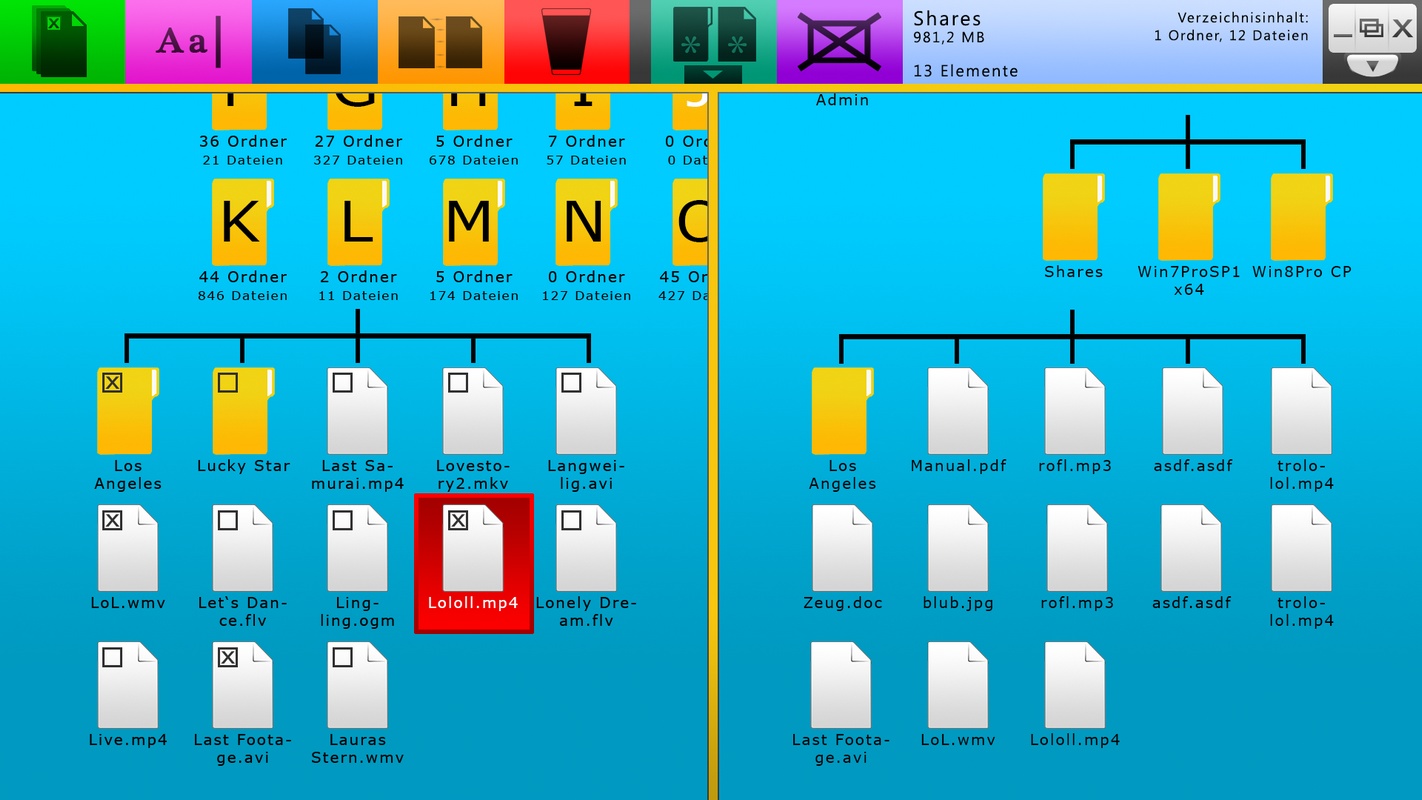
If you don't want to copy but instead move your files, press the orange action field right to the blue one.
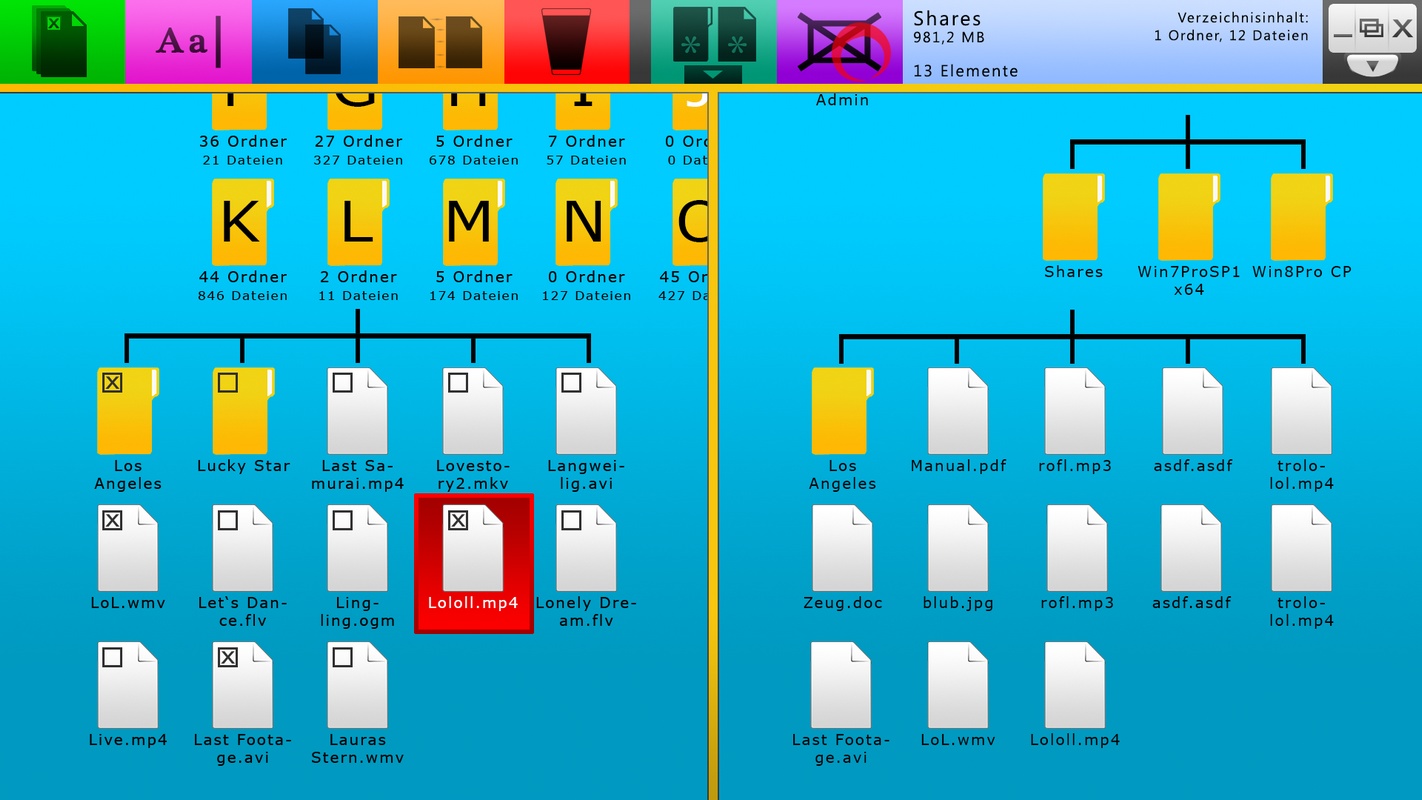
Tapping the purple field again will remove the split-view.
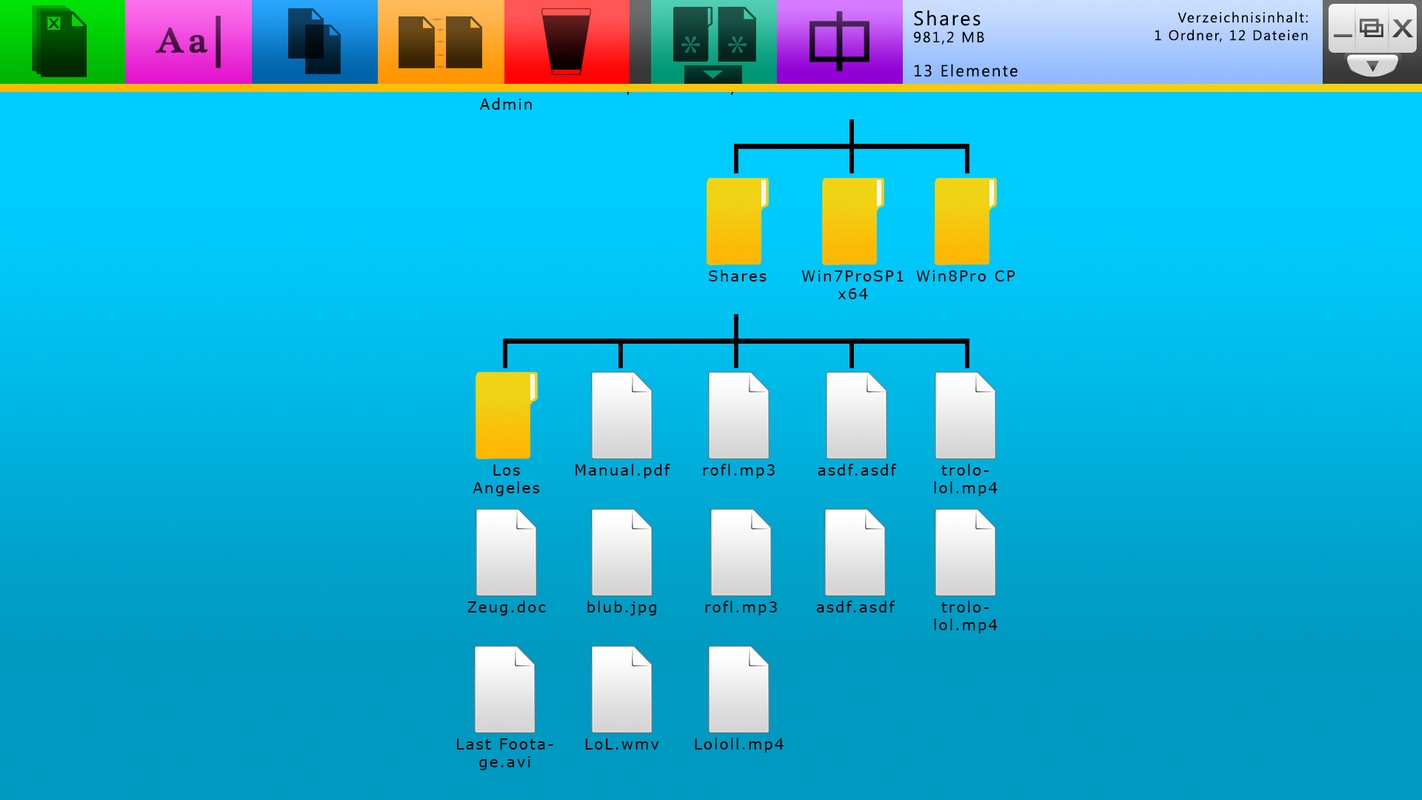
Since the right window was the active one, the left window was closed.
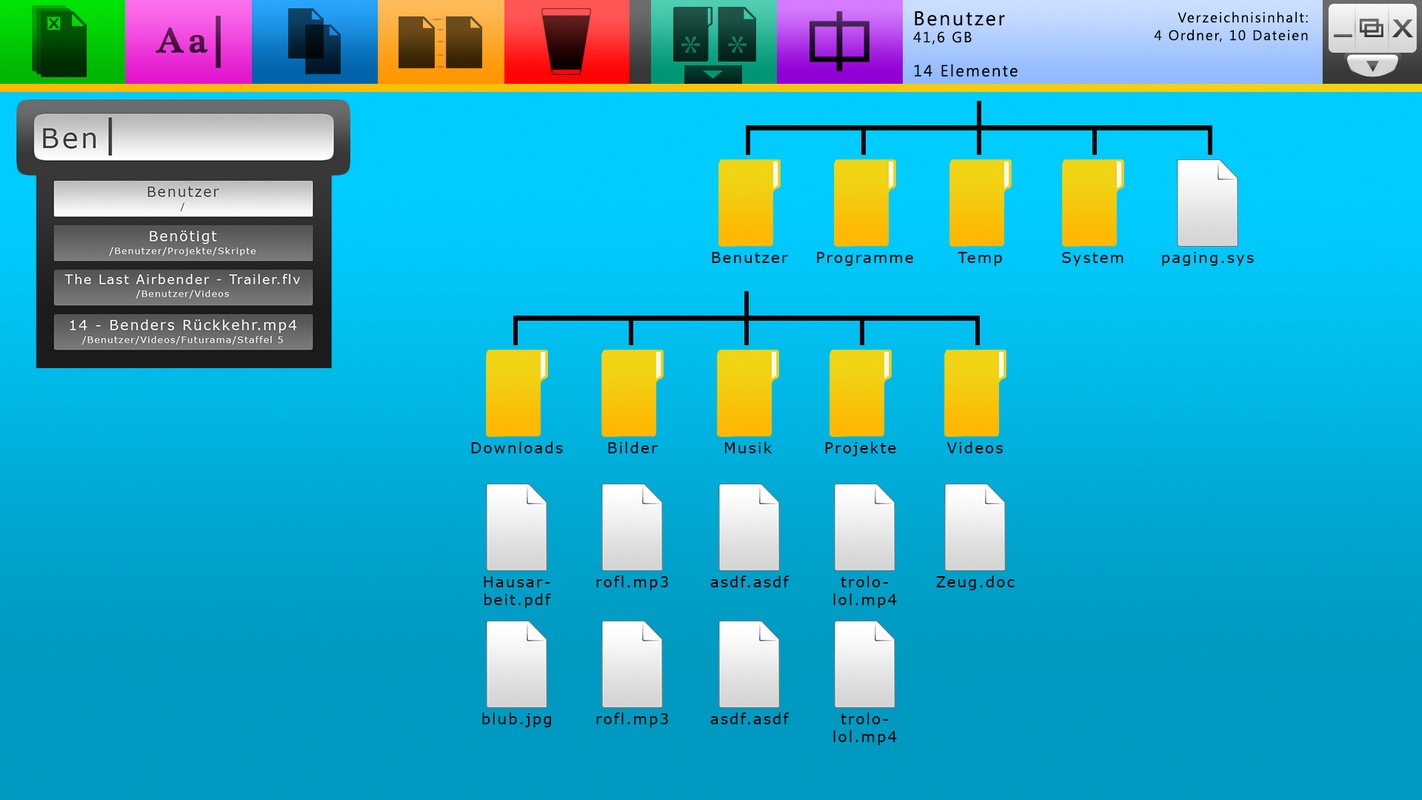
The search bar is not just used to initialize a new window section. You may also use it
to quickly jump to a specific directory at any time. You can even open files directly if you
want.
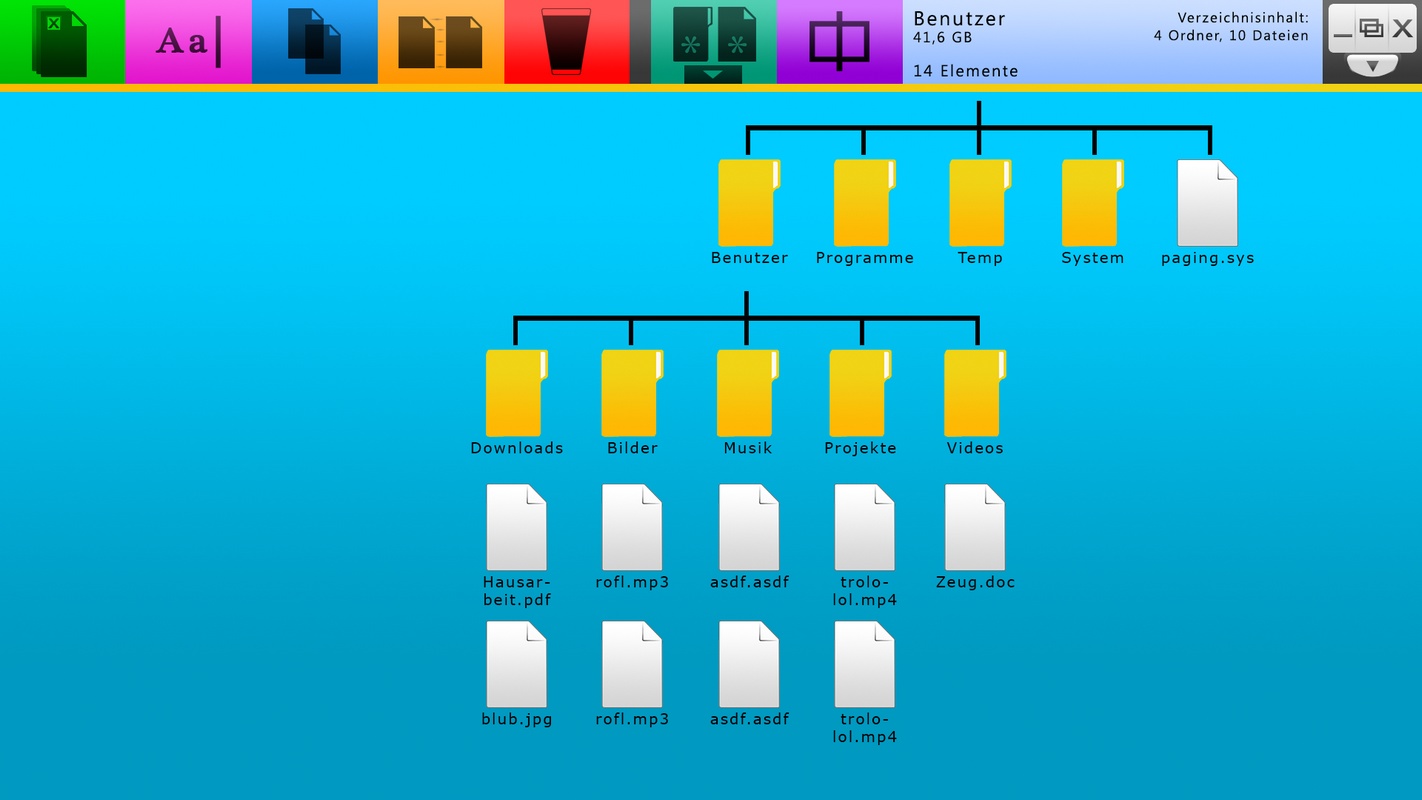
Pressing enter will make the search bar disappear. If you want to use it again, just start typing.
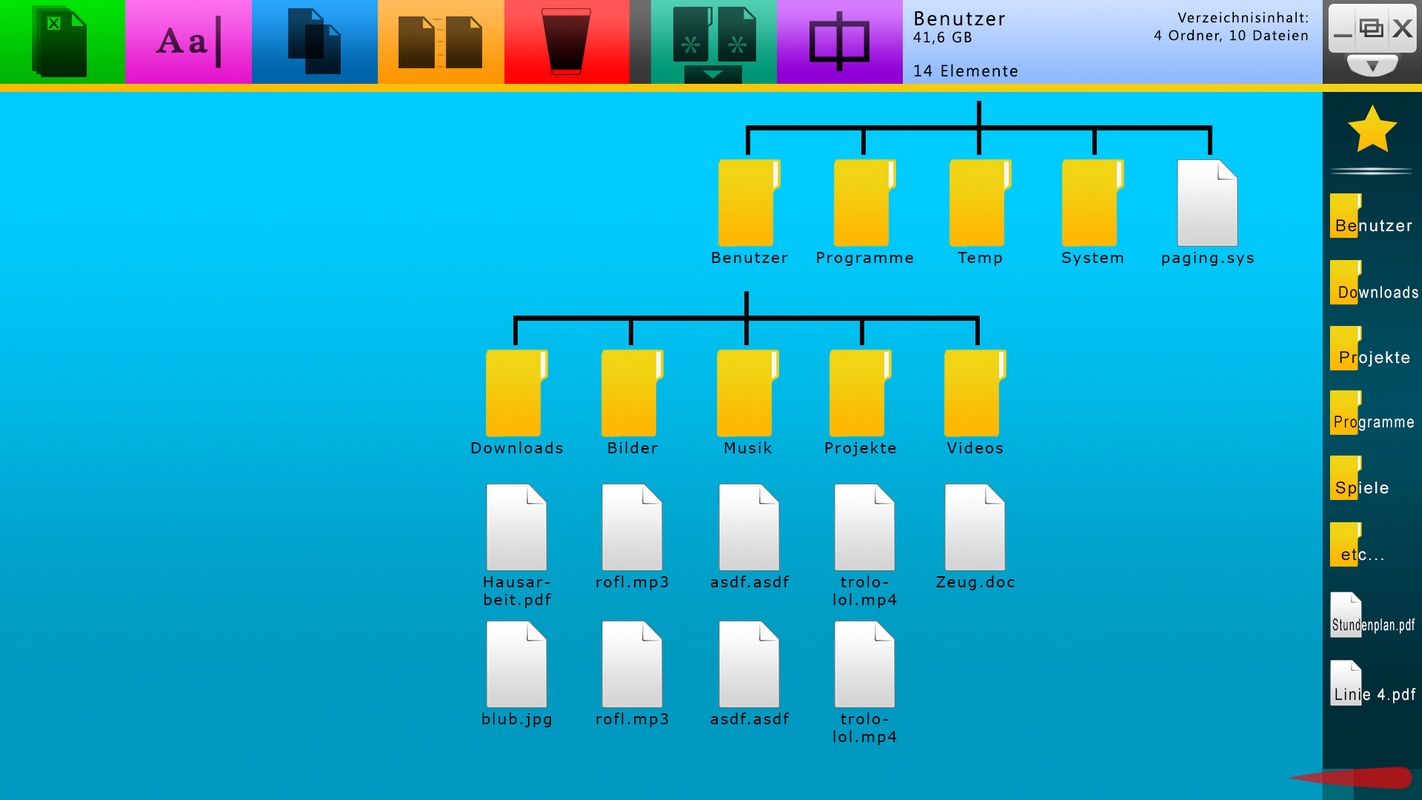
Again, you can use the favorites bar not just in split-view.
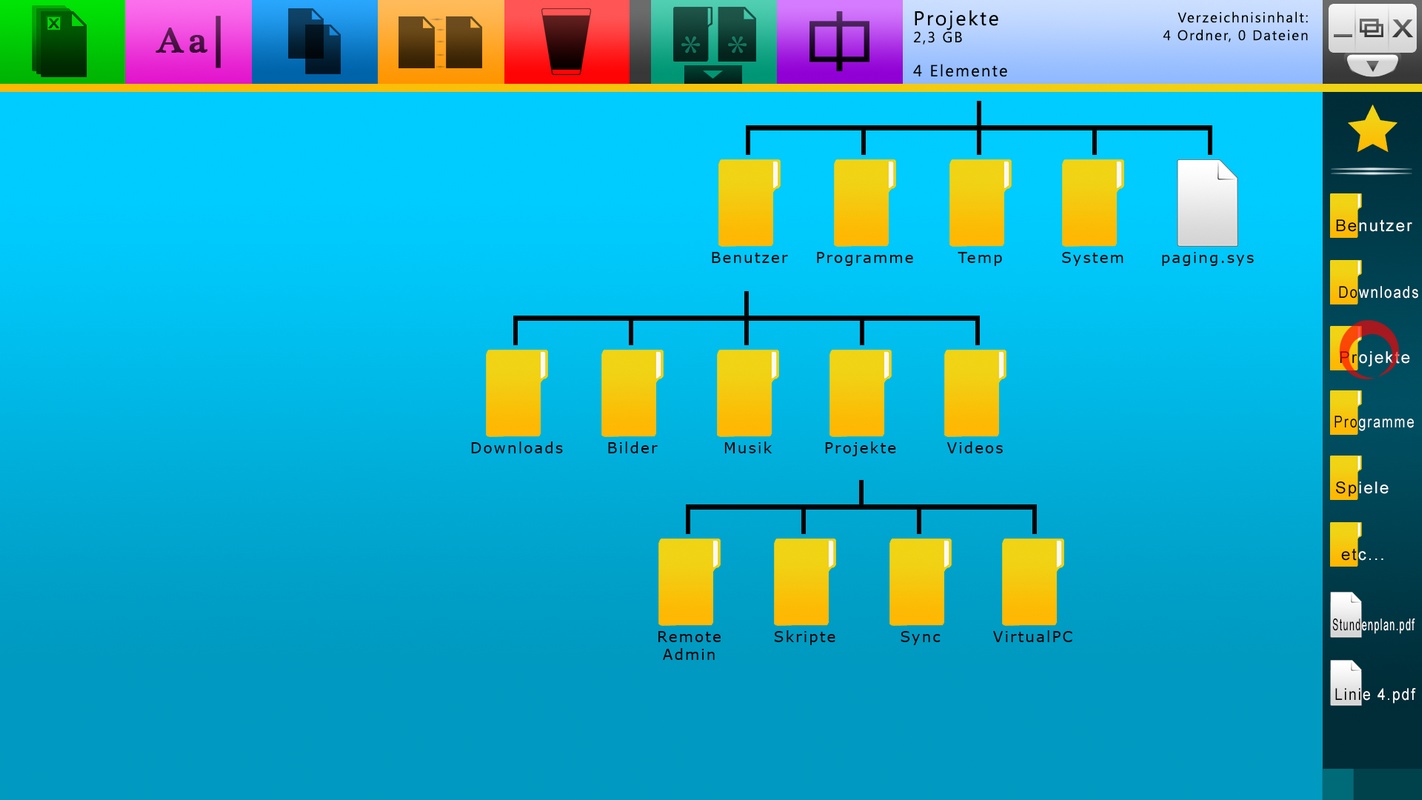
Tipping the desired element will make you jump immediately to the destination.
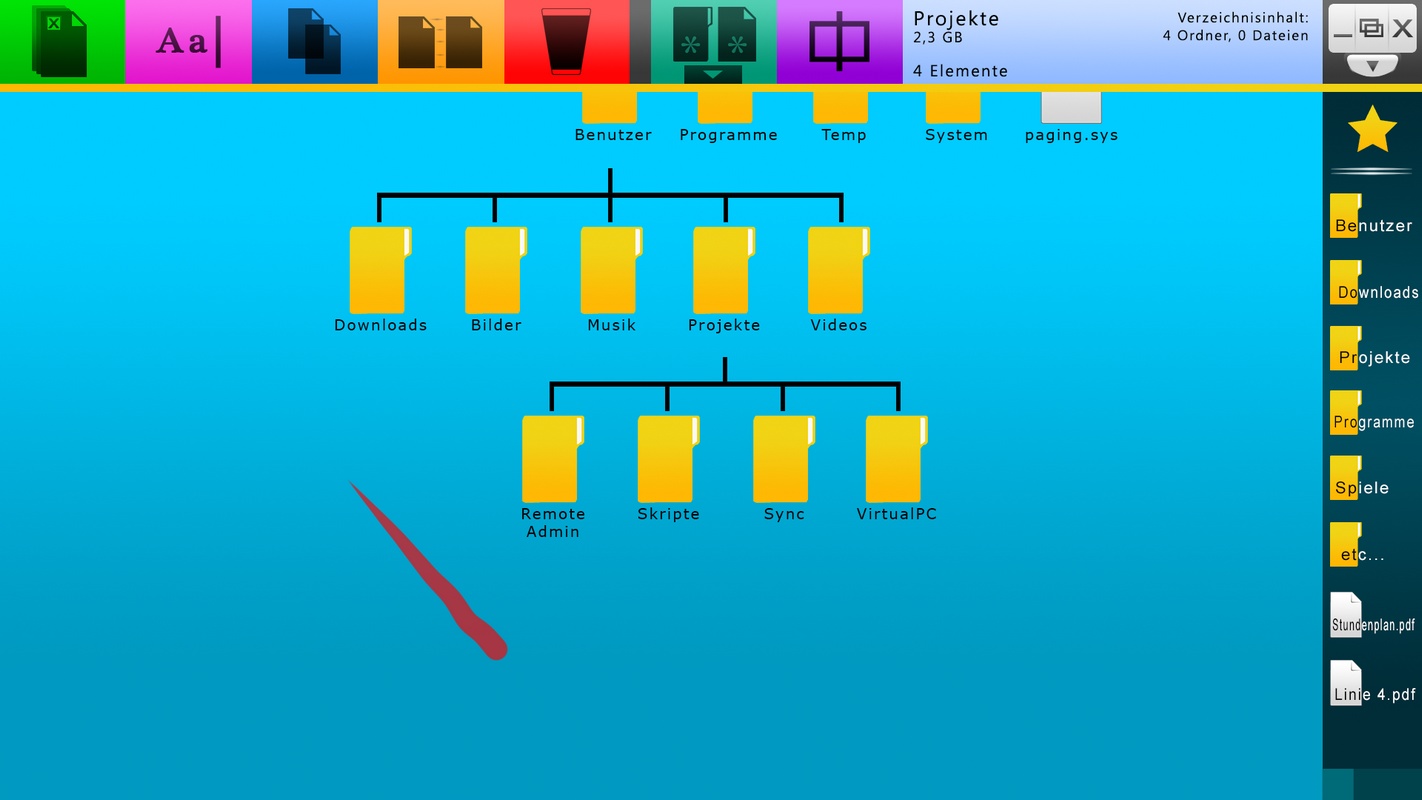
You are free to drag the filesystem as you like. The red action button by the way
is to delete elements.
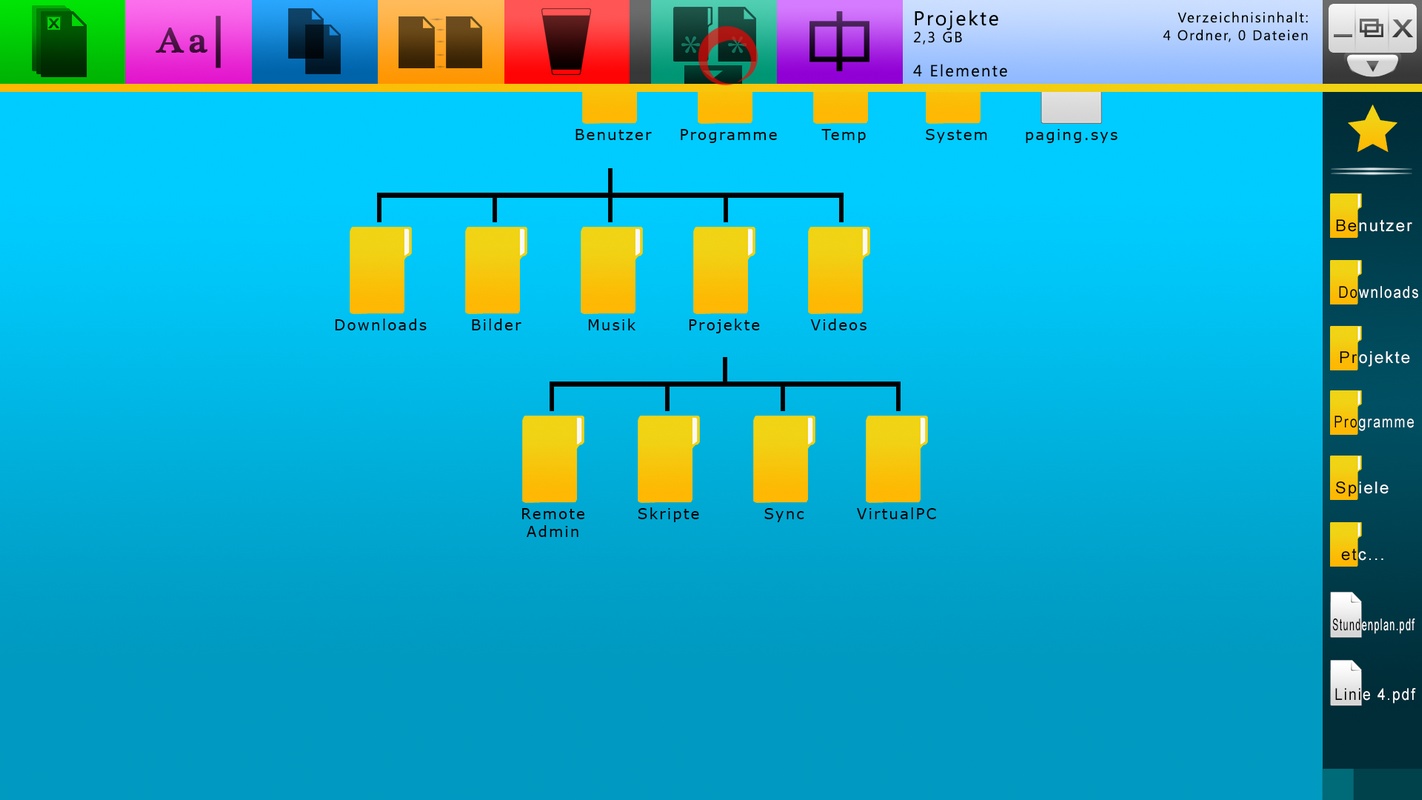
Tipping the cyan action field will slide out a small menu...
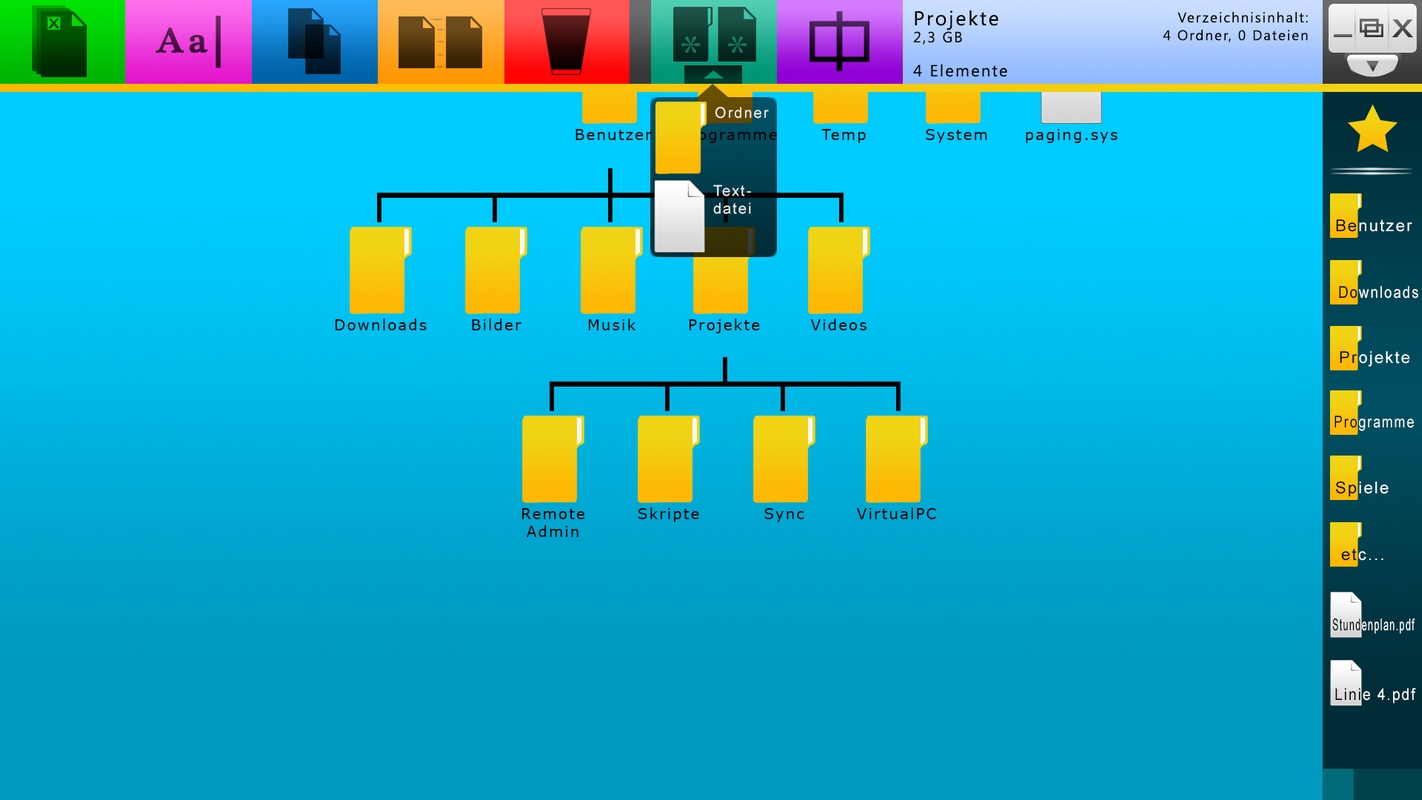
... from which you can make new files and folders. The menu shown has only two entries,
additional file types may of course also be supported.
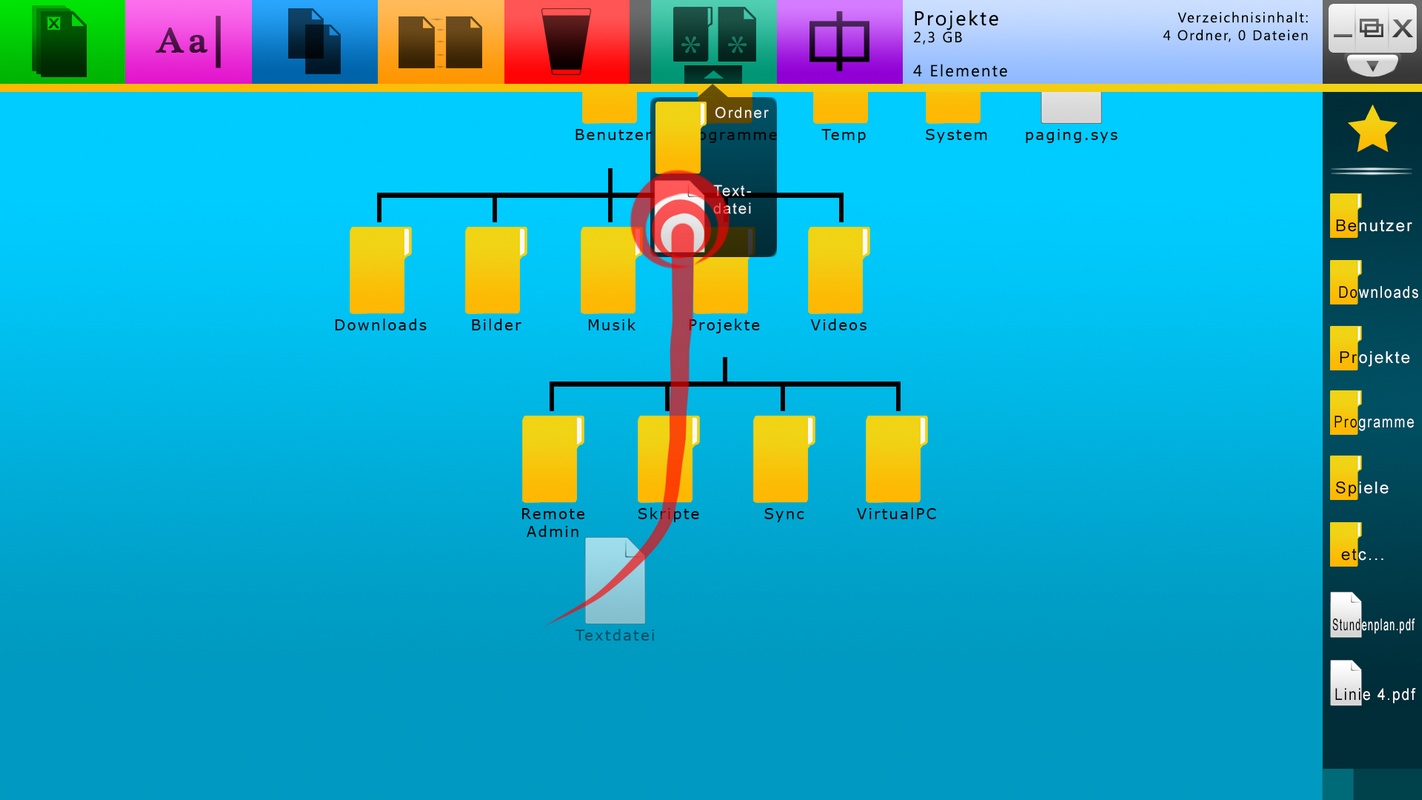
To make a new element, just hold the new filetype for a short time and drag it out.
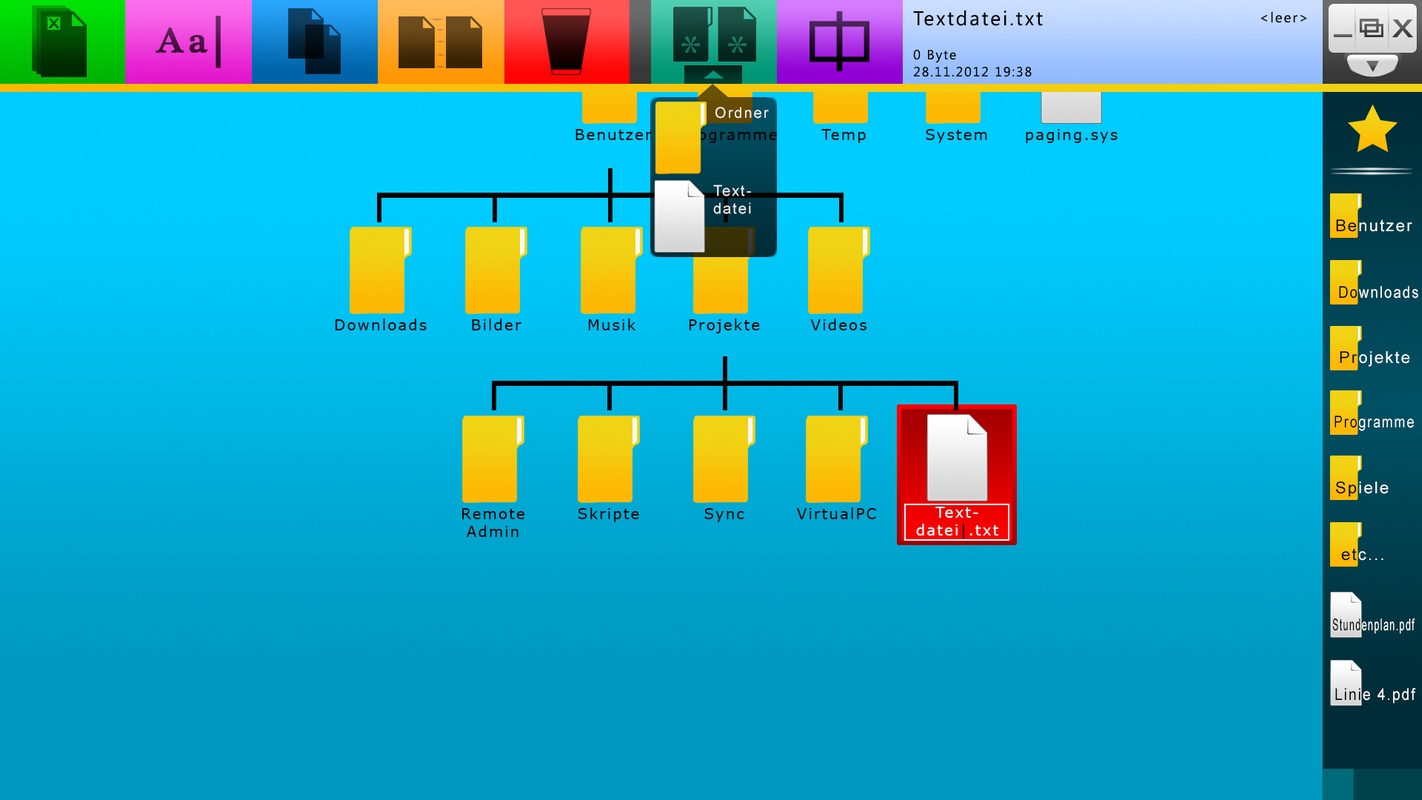
Afterwards you are able to name the file accordingly.
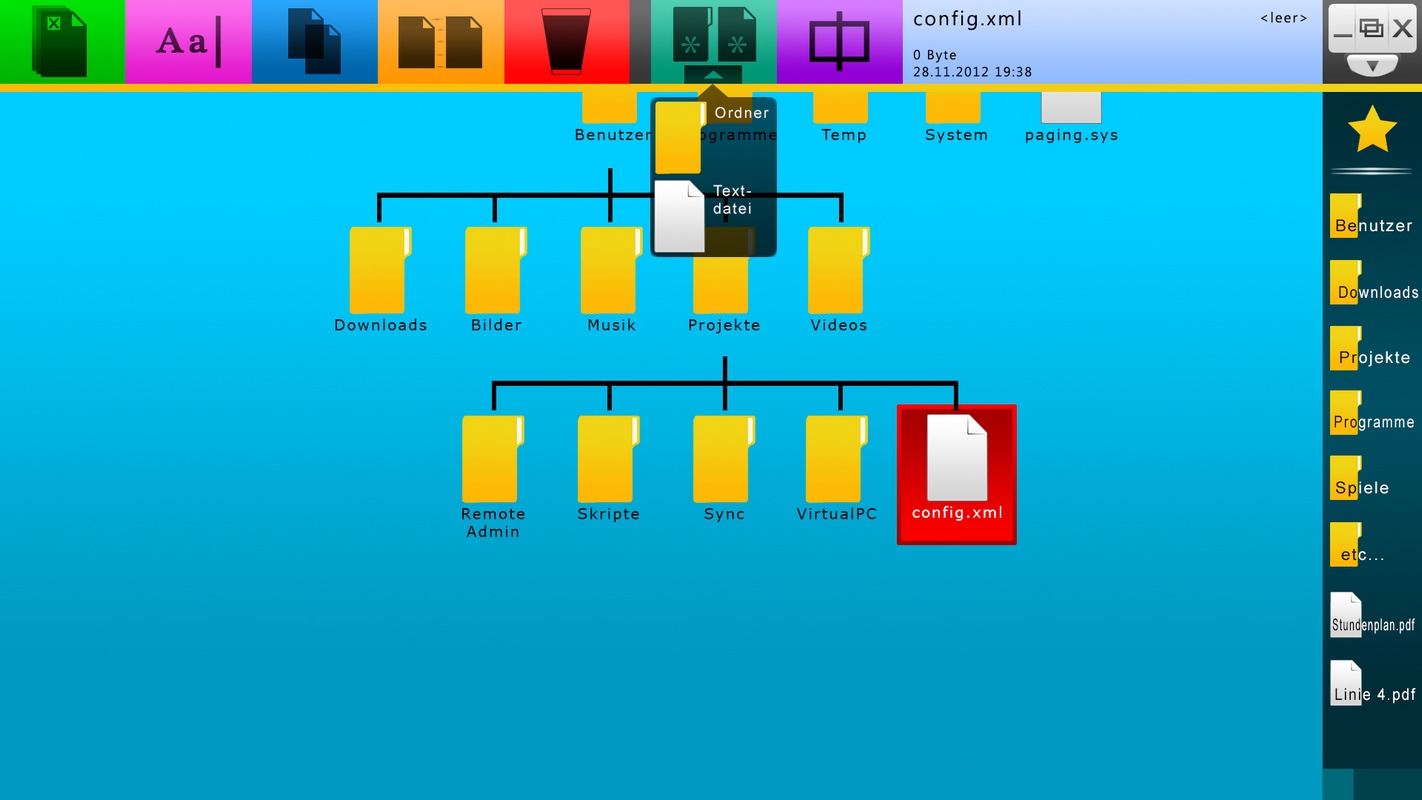
In general, if you want to rename a file or folder, just select it and press the pink
"rename" action field. Alternatively you may also drag the element on that action field, just
like on any other action field.
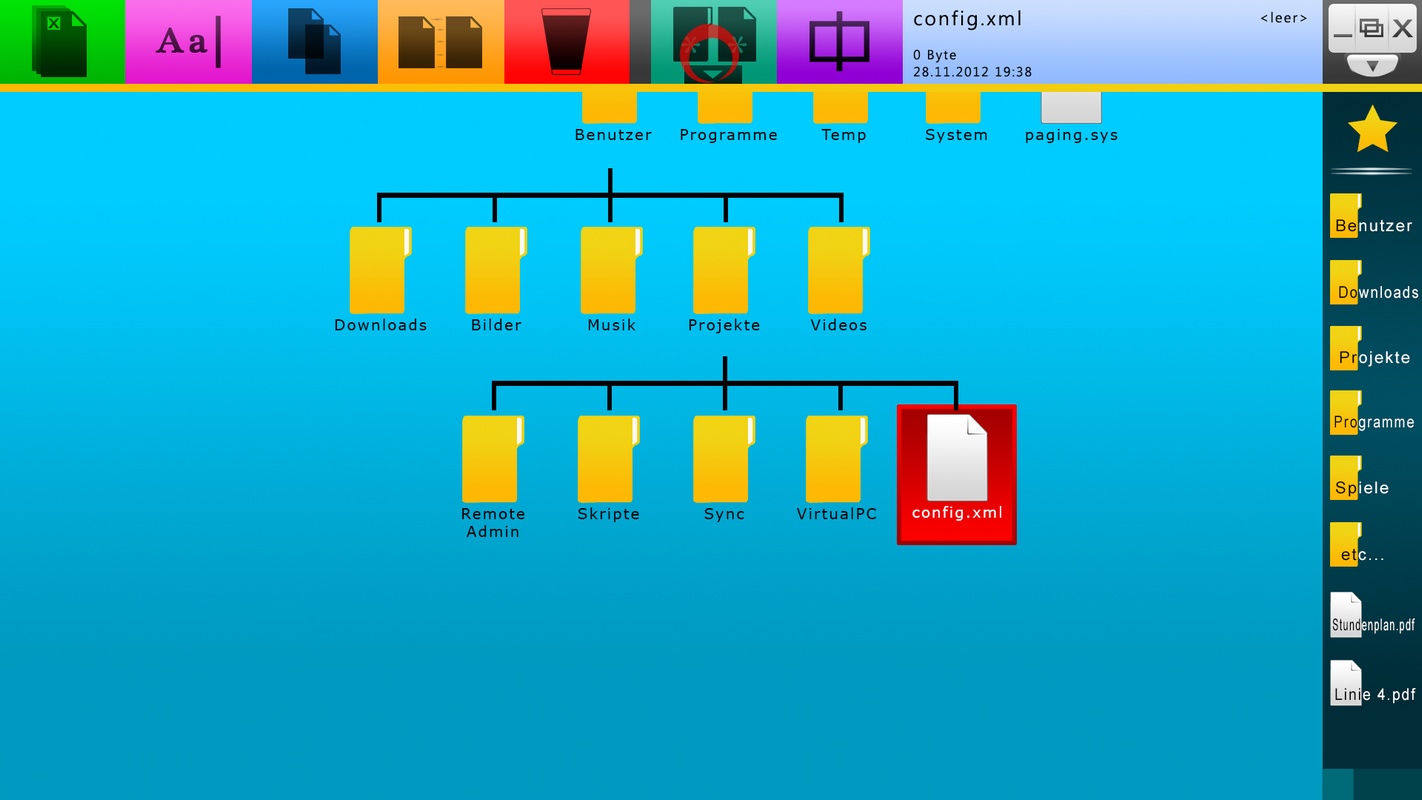
Tapping the "new" action field makes the menu disappear again.
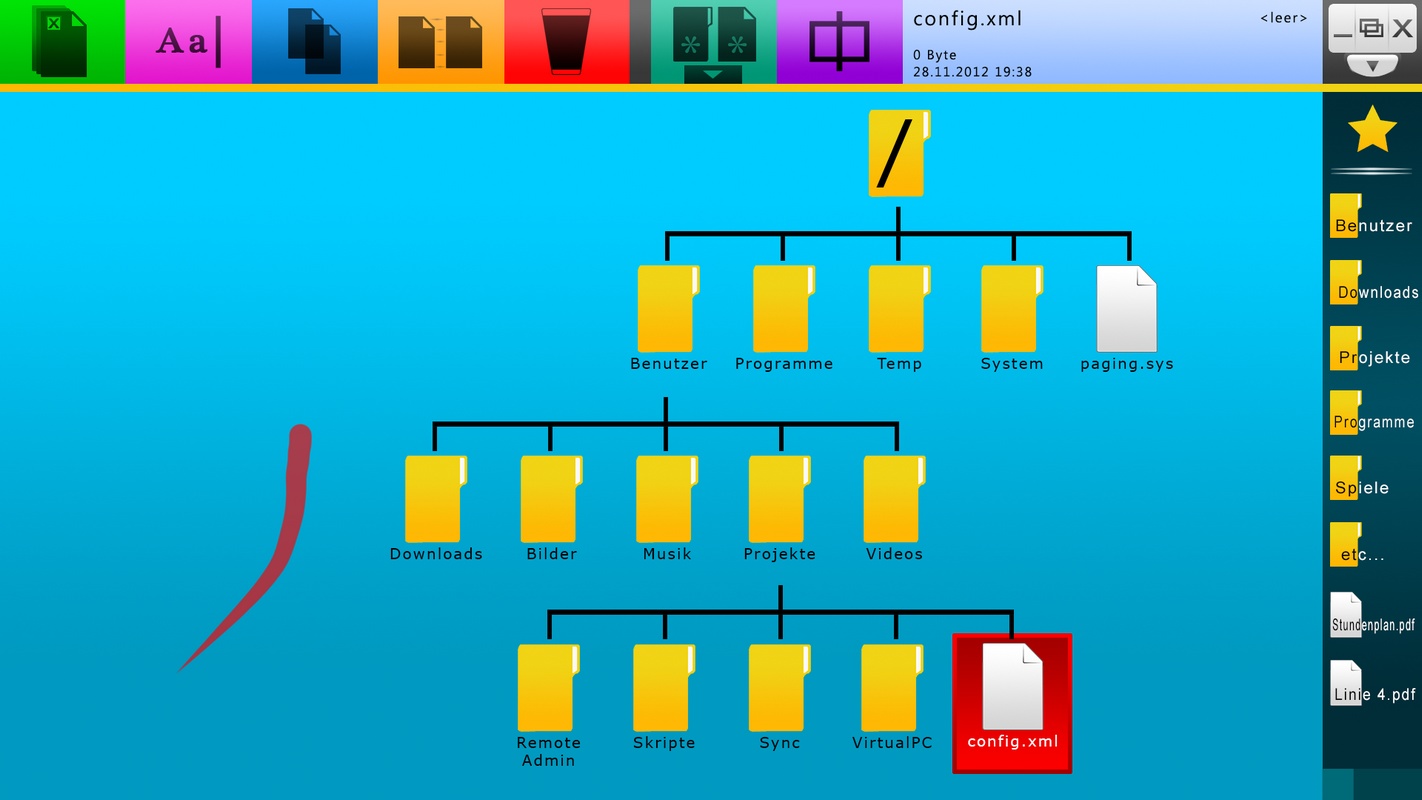
Every action field has its own color for better recognition.
Calling a context menu or a similar menu that has yet to be opened when wanting to perform an action
will in general speed you down and decrease your workflow. Action fields are big enough to be tapped
with fingers and yet allow enough space to be left for the actual filesystem structure.
© 2012 Andreas Metzger